> ## Documentation Index
> Fetch the complete documentation index at: https://docs.bibigpt.co/llms.txt
> Use this file to discover all available pages before exploring further.
# Command Line Support
> Command Line Support is one of the core features of BibiGPT. BibiGPT has launched a brand new Command Line Interface (CLI) support, further enhancing the experience for geeks and developers. Learn about feature highlights, applicable scenarios, and usage suggestions to improve learning and content processing efficiency.
## Feature Overview
BibiGPT has launched a brand new Command Line Interface (CLI) support, further enhancing the experience for geeks and developers. Key update points are as follows:
1. **Global Command Support**: After installing the desktop client, users can directly use the `bibi` command in the terminal.
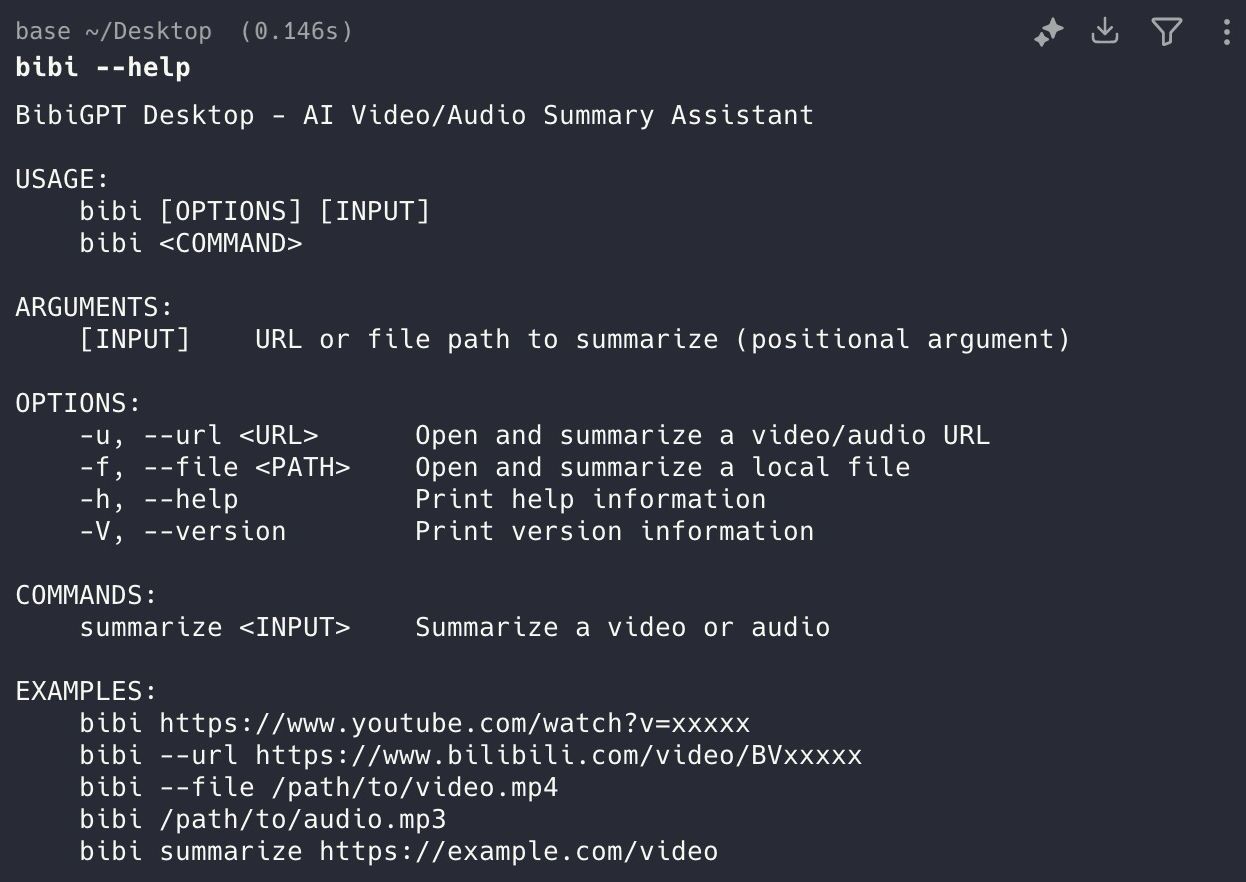
2. **Multifunctional Parameters**: By entering `bibi --help`, users can view supported functions. Currently, it mainly supports two input sources: URL (web link) and File (local file).
3. **Seamless Wake-up**: After entering `bibi [link]` in the terminal, the system will automatically wake up the BibiGPT desktop application and immediately jump to the summary page for that video.
This function greatly simplifies the operation steps, allowing users to quickly start video summarization tasks without leaving the command line environment.
Here is an example of the function interface:
 ## Solved Pain Points
As a developer or geek user accustomed to using the Terminal, every time I want to summarize a video or file, I need to switch windows, open the application, and manually paste the link. This operation of switching back and forth between the command line and the graphical interface interrupts my immersive workflow.
## Core Features
* BibiGPT launched a brand new Command Line Interface (CLI) support for geeks and developers.
* Global `bibi` command support after installing the desktop client.
* `bibi --help` shows supported functions like URL and File input sources.
* Automatically wakes up the desktop app and jumps to the video summary page from the terminal.
## Feature Highlights
BibiGPT is now integrated with a Command Line Tool (CLI), supported after installing the client. Users only need to enter a simple `bibi` command (supporting URL or file path) in the terminal to directly call up the desktop client and automatically start summarizing, achieving seamless connection with the terminal workflow.
## Applicable Scenarios
* As a developer or geek user accustomed to using the Terminal, every time I want to summarize a video or file, I need to switch windows, open the application, and manually paste the link. This operation of switching back and forth between the command line and the graphical interface interrupts my immersive workflow.
## Usage Suggestions
* BibiGPT is now integrated with a Command Line Tool (CLI), supported after installing the client.
* Users only need to enter a simple `bibi` command (supporting URL or file path) in the terminal to directly call up the desktop client and automatically start summarizing, achieving seamless connection with the terminal workflow.
## Related Features
## Solved Pain Points
As a developer or geek user accustomed to using the Terminal, every time I want to summarize a video or file, I need to switch windows, open the application, and manually paste the link. This operation of switching back and forth between the command line and the graphical interface interrupts my immersive workflow.
## Core Features
* BibiGPT launched a brand new Command Line Interface (CLI) support for geeks and developers.
* Global `bibi` command support after installing the desktop client.
* `bibi --help` shows supported functions like URL and File input sources.
* Automatically wakes up the desktop app and jumps to the video summary page from the terminal.
## Feature Highlights
BibiGPT is now integrated with a Command Line Tool (CLI), supported after installing the client. Users only need to enter a simple `bibi` command (supporting URL or file path) in the terminal to directly call up the desktop client and automatically start summarizing, achieving seamless connection with the terminal workflow.
## Applicable Scenarios
* As a developer or geek user accustomed to using the Terminal, every time I want to summarize a video or file, I need to switch windows, open the application, and manually paste the link. This operation of switching back and forth between the command line and the graphical interface interrupts my immersive workflow.
## Usage Suggestions
* BibiGPT is now integrated with a Command Line Tool (CLI), supported after installing the client.
* Users only need to enter a simple `bibi` command (supporting URL or file path) in the terminal to directly call up the desktop client and automatically start summarizing, achieving seamless connection with the terminal workflow.
## Related Features