> ## Documentation Index
> Fetch the complete documentation index at: https://docs.bibigpt.co/llms.txt
> Use this file to discover all available pages before exploring further.
# BibiGPT Summary Page Features Introduction
> This document details the functions of the BibiGPT summary page, including basic function tabs, summary overview, mind map, transcript list, and article view, helping users better understand and use these features.
# 1 BibiGPT Summary Page Features Introduction
The BibiGPT summary detail function page is a powerful tool that provides users with comprehensive video or audio content analysis. Here are the main functions and features of this page:
## 1.1 Basic Function Tabs
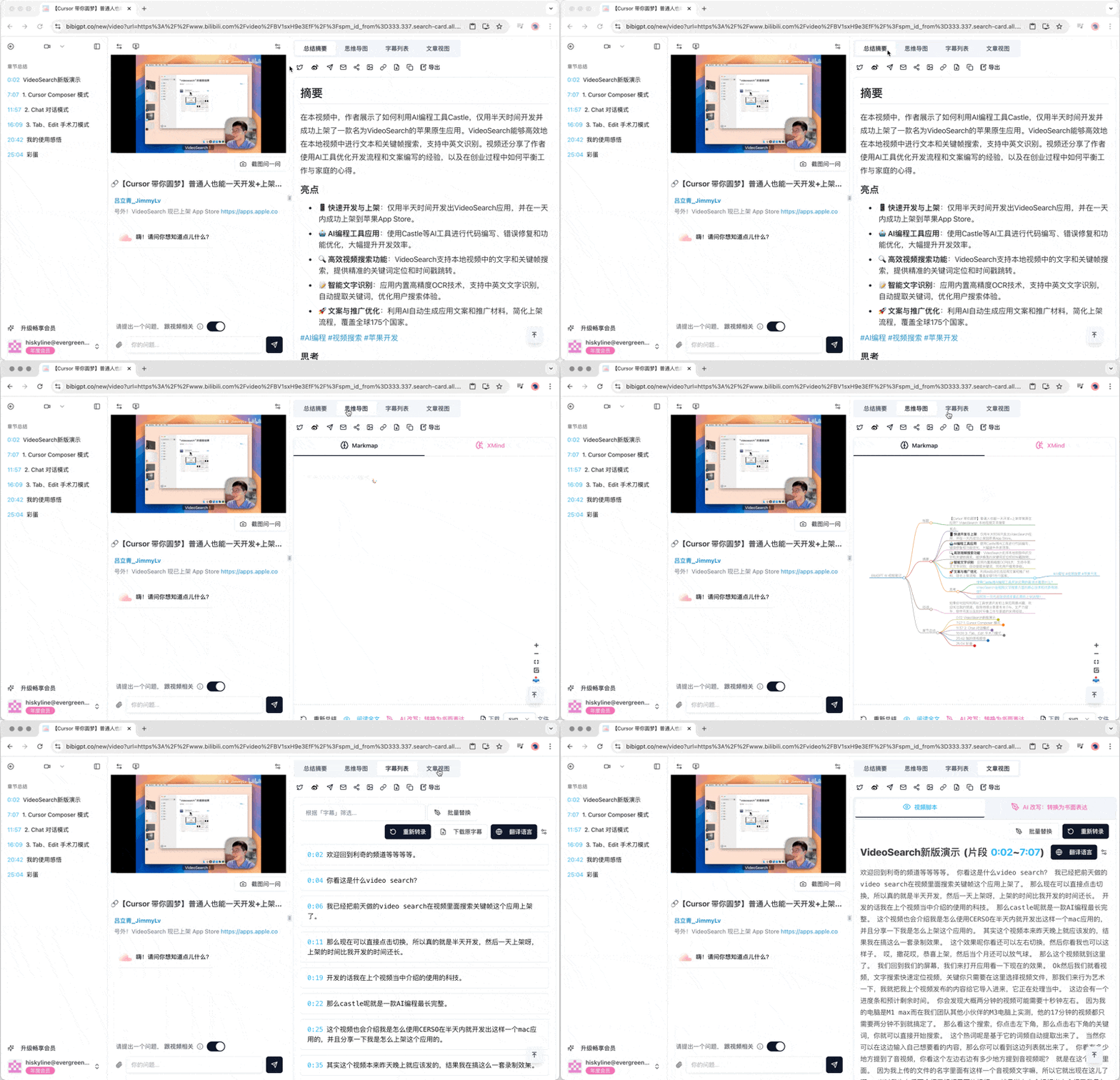 The summary detail page includes the following main tabs:
* Summary Overview
* Mind Map
* Transcript List
* Article View
Each tab is carefully designed to provide content analysis from different angles.
## 1.2 Summary Overview
The summary detail page includes the following main tabs:
* Summary Overview
* Mind Map
* Transcript List
* Article View
Each tab is carefully designed to provide content analysis from different angles.
## 1.2 Summary Overview
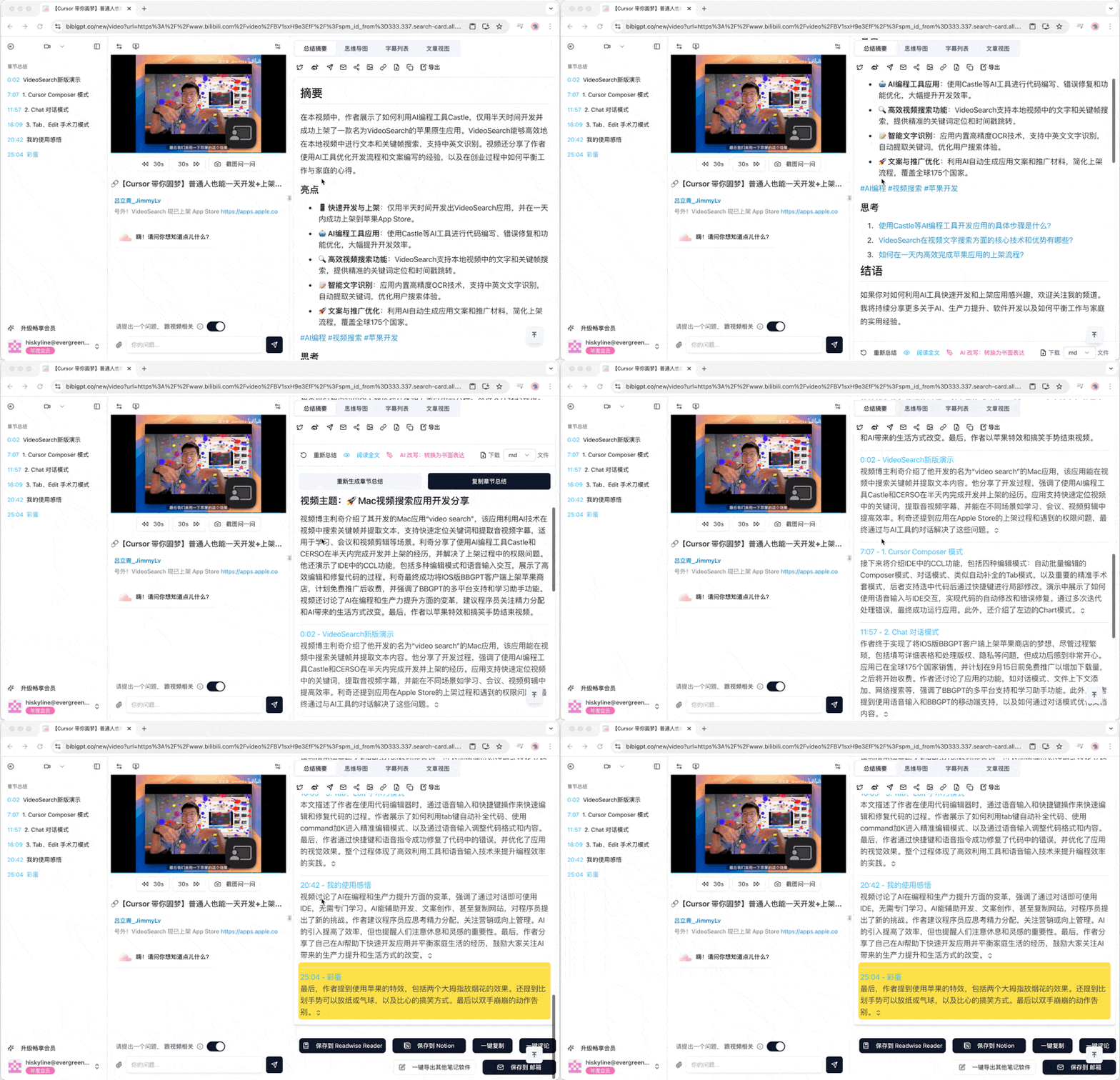 The Summary Overview tab is divided into two main parts:
* Overall Summary: Provides a concise overview of the content
* Chapter Summary: Detailed summary divided by chapter or time period
Users can scroll through these summaries to quickly obtain key information.
## 1.3 Mind Map
The Summary Overview tab is divided into two main parts:
* Overall Summary: Provides a concise overview of the content
* Chapter Summary: Detailed summary divided by chapter or time period
Users can scroll through these summaries to quickly obtain key information.
## 1.3 Mind Map
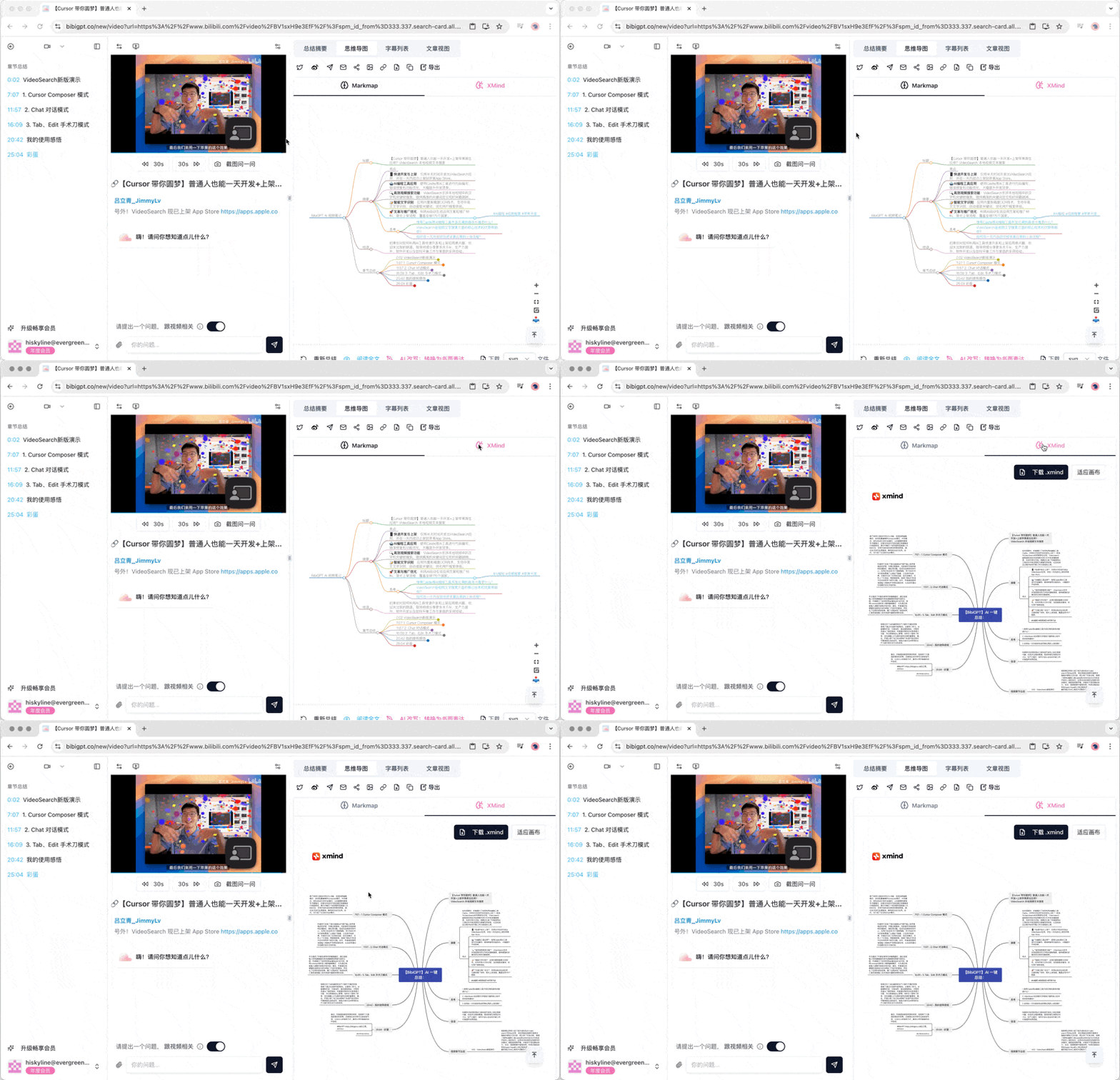 The Mind Map tab provides two different visualization methods:
* Markmap: Displays content relationships in a tree structure
* XMind: Provides a more complex mind map layout
Users can switch between these two views to understand the content structure in different ways.
## 1.4 Transcript List
The Mind Map tab provides two different visualization methods:
* Markmap: Displays content relationships in a tree structure
* XMind: Provides a more complex mind map layout
Users can switch between these two views to understand the content structure in different ways.
## 1.4 Transcript List
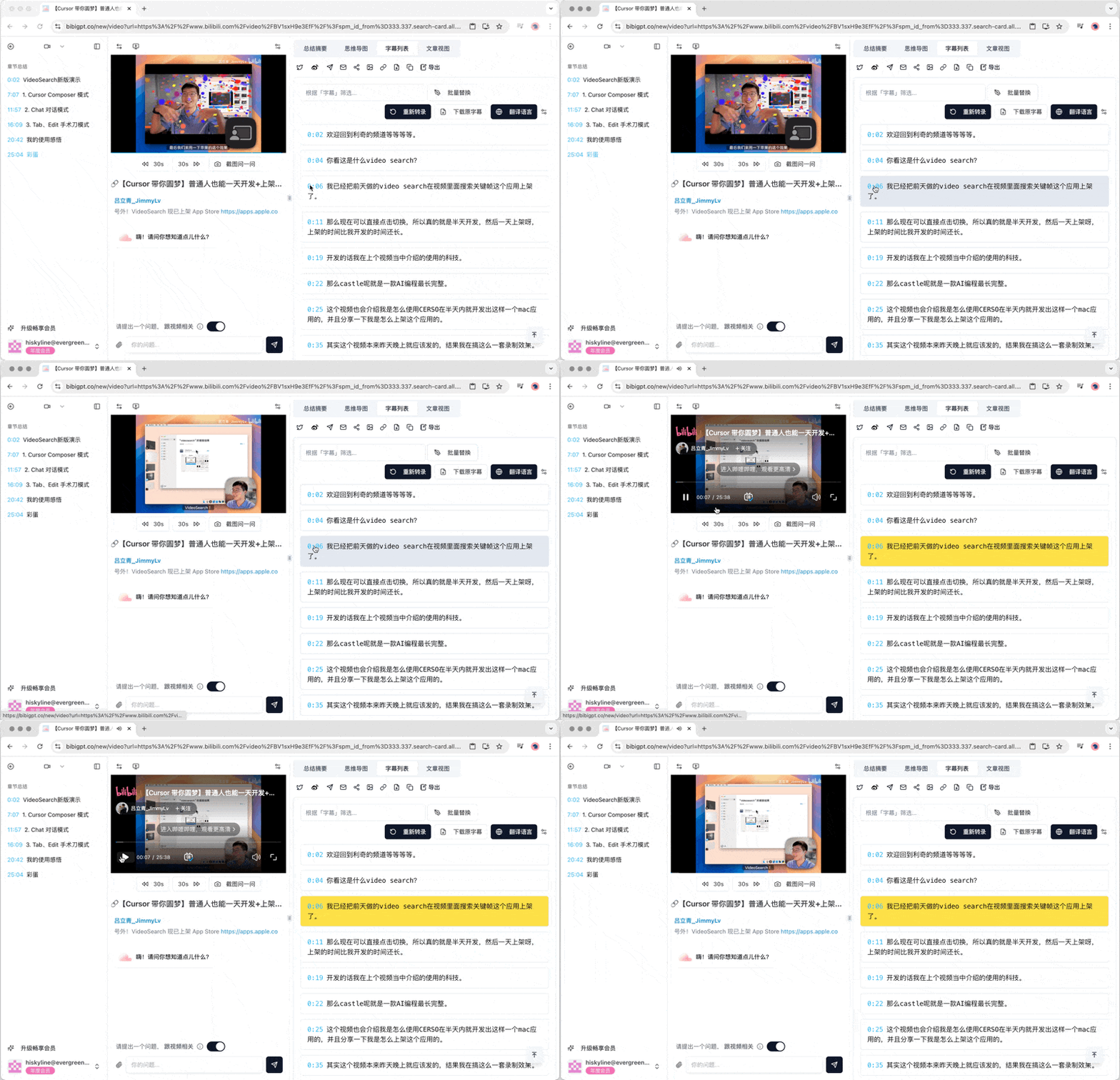 The Transcript List provides a complete textual record of the video or audio. Each transcript line is preceded by a timestamp, which can be clicked to jump to the corresponding position in the video or audio, making it convenient for users to quickly locate content of interest.
## 1.5 Article View
The Transcript List provides a complete textual record of the video or audio. Each transcript line is preceded by a timestamp, which can be clicked to jump to the corresponding position in the video or audio, making it convenient for users to quickly locate content of interest.
## 1.5 Article View
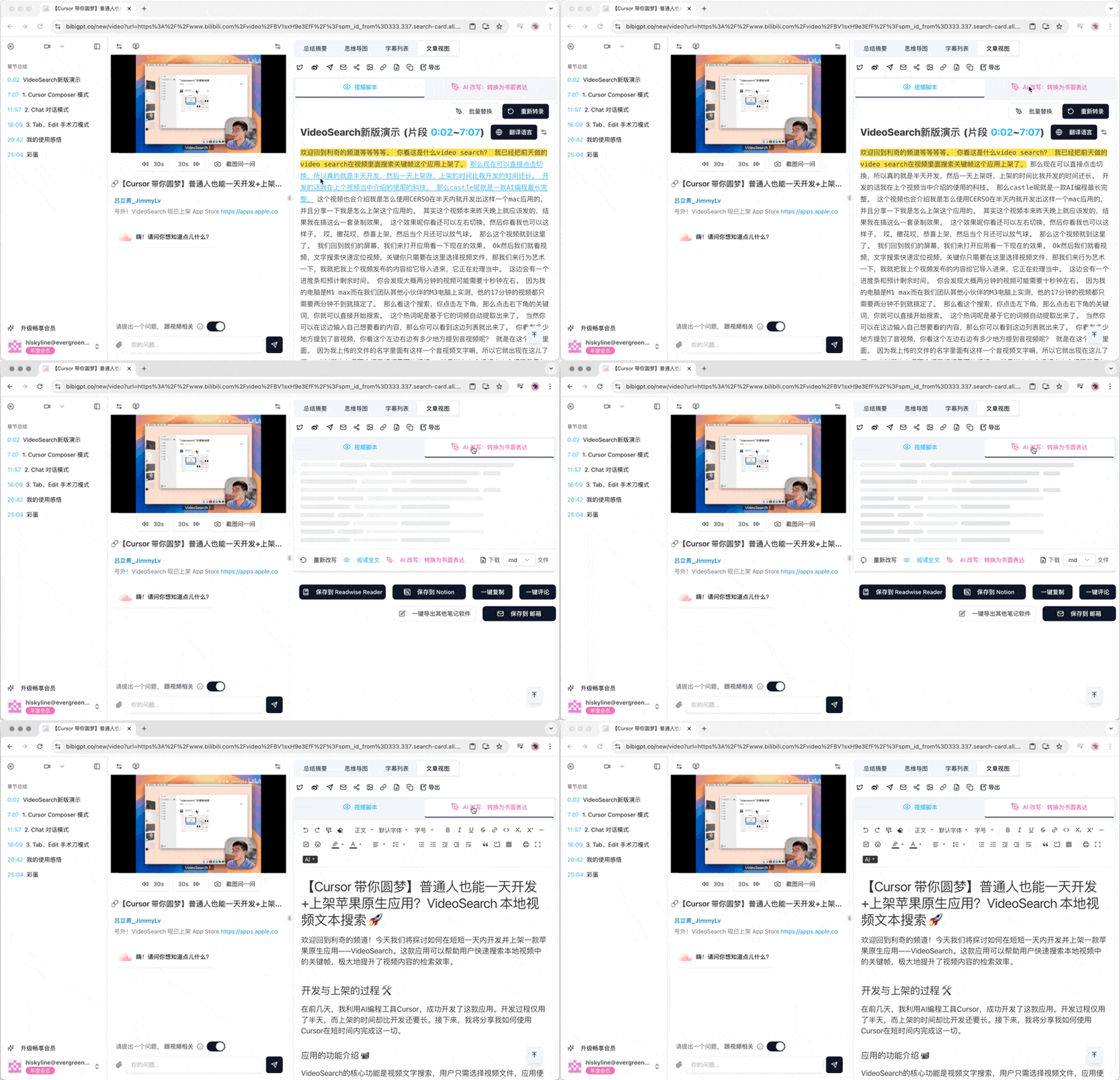 The Article View contains two sub-tabs:
* Video Script: The original video or audio transcript
* AI Rewrite: Converts spoken content into more formal written expression
Users can switch between these two views and choose the appropriate reading method according to their needs.
## 1.6 Video Q\&A Function
The Article View contains two sub-tabs:
* Video Script: The original video or audio transcript
* AI Rewrite: Converts spoken content into more formal written expression
Users can switch between these two views and choose the appropriate reading method according to their needs.
## 1.6 Video Q\&A Function
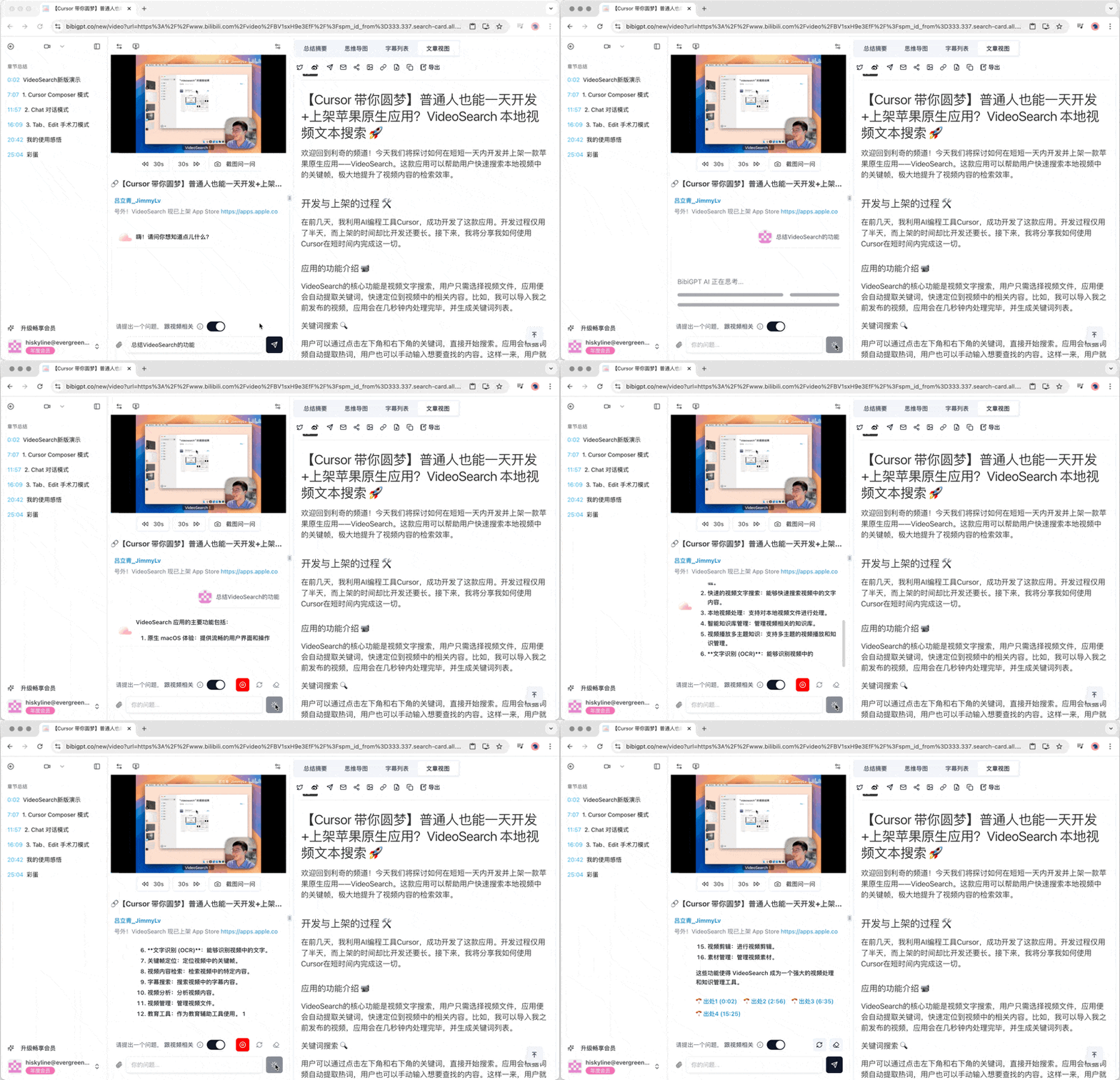 Below the video player, users can use the function to ask questions to the video. This interactive Q\&A system allows users to ask specific questions about the video content and get AI-generated answers.
## 1.7 Sidebar Navigation
Below the video player, users can use the function to ask questions to the video. This interactive Q\&A system allows users to ask specific questions about the video content and get AI-generated answers.
## 1.7 Sidebar Navigation
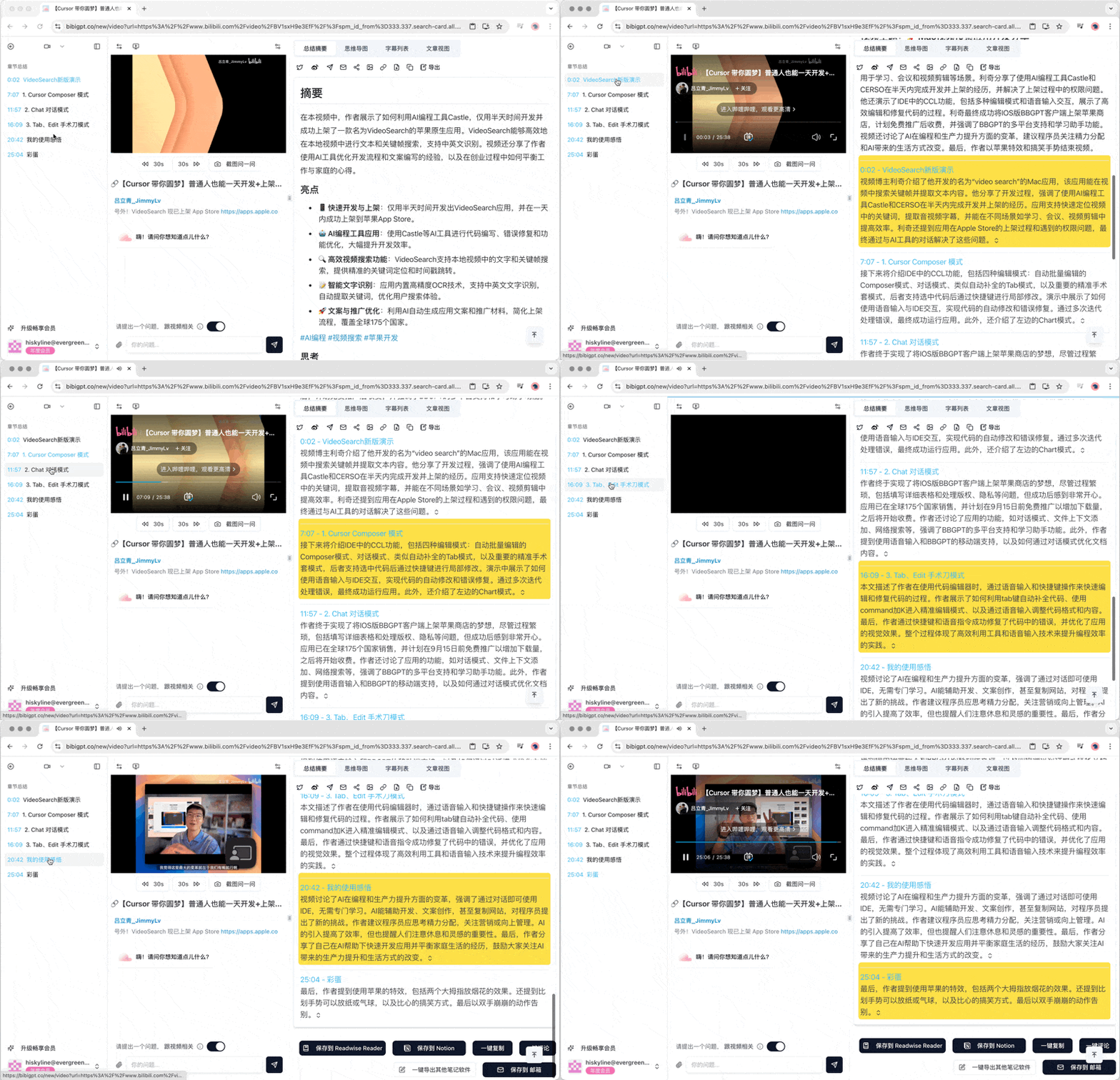 The sidebar provides additional navigation functions:
* Chapter Summary Jump: Quickly locate the summary content of a specific chapter
* Timestamp Jump: Jump directly to a specific time point in the video or audio
These features allow users to browse and research long video or audio content more flexibly.
Combined with the BibiGPT Quick Start Guide, users can easily upload video or audio links and then use these detailed analysis tools to gain a deep understanding of the content. Whether for learning, research, or entertainment, BibiGPT's summary detail function can help users absorb and understand information more efficiently.
The sidebar provides additional navigation functions:
* Chapter Summary Jump: Quickly locate the summary content of a specific chapter
* Timestamp Jump: Jump directly to a specific time point in the video or audio
These features allow users to browse and research long video or audio content more flexibly.
Combined with the BibiGPT Quick Start Guide, users can easily upload video or audio links and then use these detailed analysis tools to gain a deep understanding of the content. Whether for learning, research, or entertainment, BibiGPT's summary detail function can help users absorb and understand information more efficiently.