> ## Documentation Index
> Fetch the complete documentation index at: https://docs.bibigpt.co/llms.txt
> Use this file to discover all available pages before exploring further.
# macOS 零下载语音转写
> 在 BibiGPT 桌面端的本地隐私模式里,Mac 可选用内置「macOS 系统识别」,不用先下载转写模型就能在本机出字幕。
## 功能概述
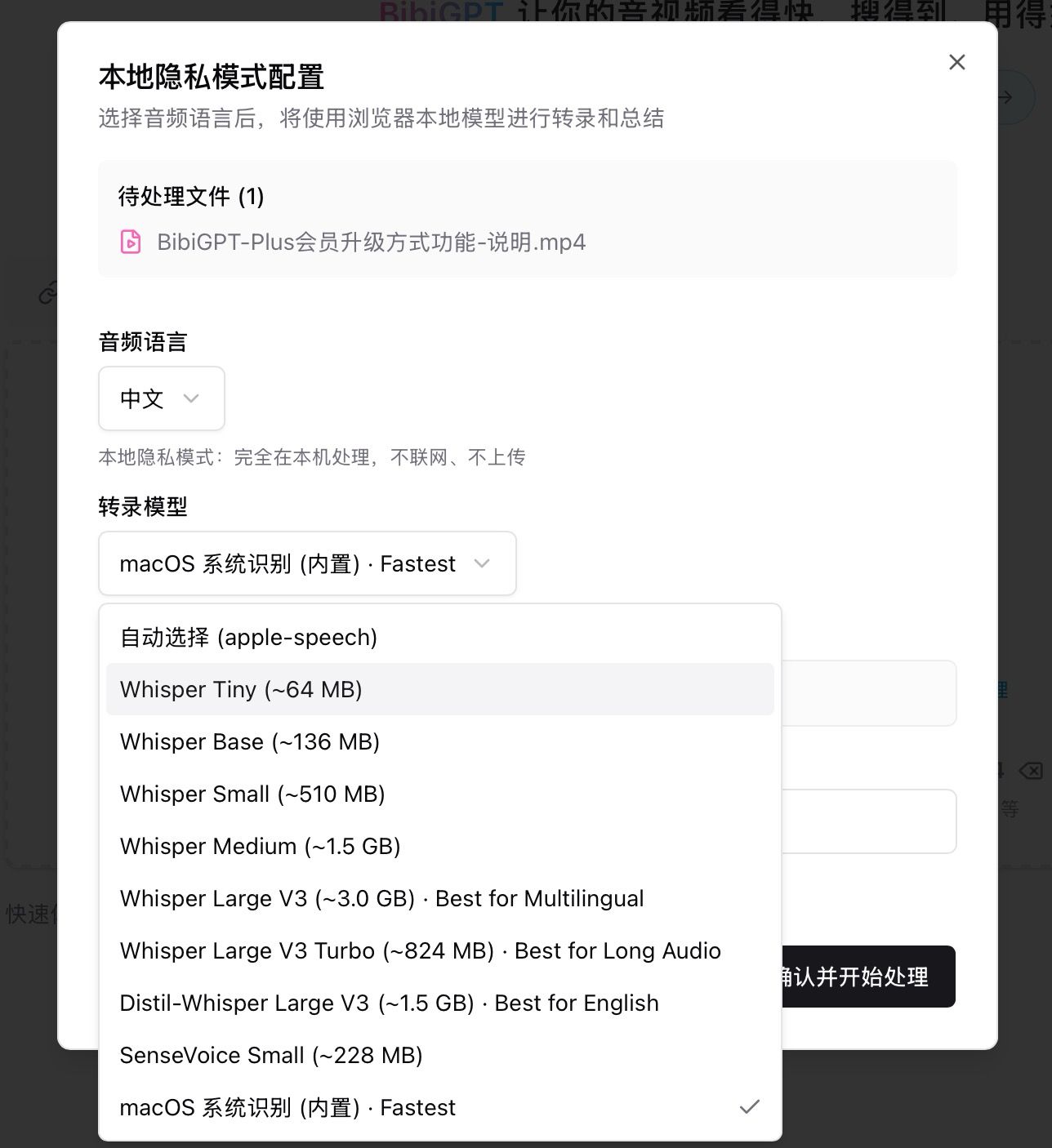
Mac 上打开桌面客户端的本地隐私模式配置时,「转录模型」默认可选「macOS 系统识别(内置)· Fastest」。它调用系统自带语音识别,不必下载几百 MB 到数 GB 的模型,适合想马上在本机转写的场景。
 ## 解决的痛点
我想在 Mac 上用本地隐私模式,但不想先下一个很大的转写模型。电脑已经有系统语音识别,希望装好就能转。
## 核心功能
* Mac 独有选项「macOS 系统识别(内置)」,默认勾选,速度标记为 Fastest
* 无需下载模型文件,打开就能转写
* 仍可改选 Whisper Tiny / Base / Small / Medium / Large 等其他模型(体积从约 64 MB 到约 3 GB)
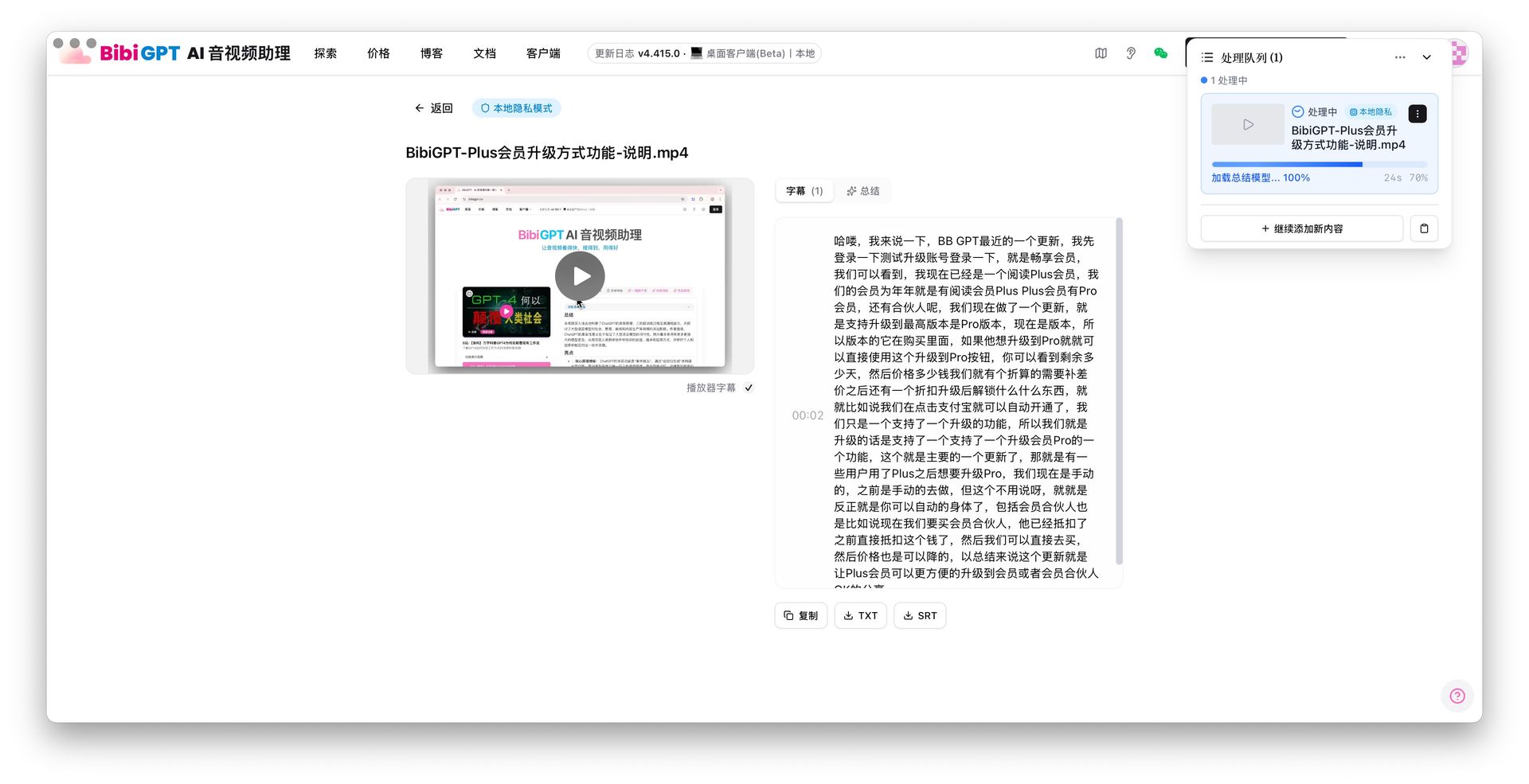
* 全程在本机完成:不联网上传、结果不进云端资料库
## 功能亮点
Mac 用户可以把本地隐私模式当成开箱即用的路径,不必为磁盘和下载等待做取舍。
## 适用场景
* 第一次用桌面端,想立刻试本地转写
* 笔记本磁盘紧张,不想再装数 GB 模型
* 会议录音不能离开这台 Mac
## 使用建议
* 多语言或很长的音频,可再切到列表里的 Whisper 等选项对比效果
* 请先关掉「视觉化总结」,再开「本地隐私模式」,按弹窗选择语言和模型后开始处理
## 相关功能
***
**升级 Pro**:需要更高精度的在线总结时 → [查看定价](https://bibigpt.co/pricing)
## 解决的痛点
我想在 Mac 上用本地隐私模式,但不想先下一个很大的转写模型。电脑已经有系统语音识别,希望装好就能转。
## 核心功能
* Mac 独有选项「macOS 系统识别(内置)」,默认勾选,速度标记为 Fastest
* 无需下载模型文件,打开就能转写
* 仍可改选 Whisper Tiny / Base / Small / Medium / Large 等其他模型(体积从约 64 MB 到约 3 GB)
* 全程在本机完成:不联网上传、结果不进云端资料库
## 功能亮点
Mac 用户可以把本地隐私模式当成开箱即用的路径,不必为磁盘和下载等待做取舍。
## 适用场景
* 第一次用桌面端,想立刻试本地转写
* 笔记本磁盘紧张,不想再装数 GB 模型
* 会议录音不能离开这台 Mac
## 使用建议
* 多语言或很长的音频,可再切到列表里的 Whisper 等选项对比效果
* 请先关掉「视觉化总结」,再开「本地隐私模式」,按弹窗选择语言和模型后开始处理
## 相关功能
***
**升级 Pro**:需要更高精度的在线总结时 → [查看定价](https://bibigpt.co/pricing)