
Feature Overview
The BibiGPT desktop version has added a “Folder Monitoring Auto Import” function, significantly improving the efficiency of local file processing. Users only need to enable “Auto Import” in the “Knowledge Resource Library”, select the local folder to be monitored, and customize file filtering rules (such as specific extensions or keywords). Once configured, dragging new video/audio files into that folder will cause BibiGPT to automatically identify them and add them to the to-be-processed list. Users can click “Start Processing” for one-click AI summarization, and view results directly in history records after completion. Here is an example of the function interface: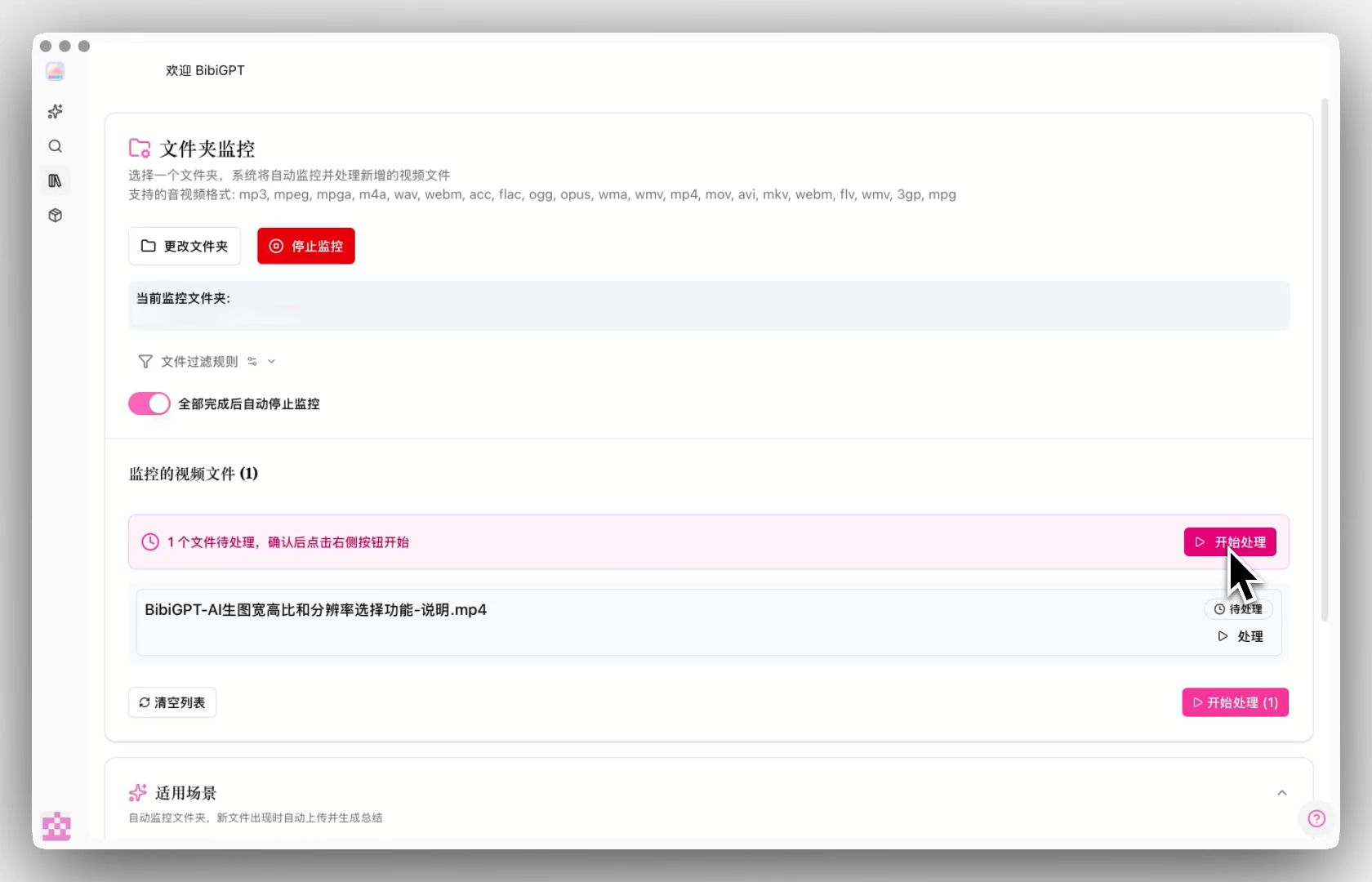
Solved Pain Points
“I have many recorded meeting videos or downloaded learning materials on my computer. Manually dragging and uploading them one by one to BibiGPT for analysis wastes a lot of time. I hope for an automated way to process these local files.”Core Features
- BibiGPT desktop version added “Folder Monitoring Auto Import” for enhanced local file efficiency.
- Enable “Auto Import” in the Knowledge Library and select folders to monitor.
- Supports custom file filtering rules by extension or keyword.
- Automatically identifies and lists new files added to monitored folders for one-click AI processing.
Feature Highlights
The BibiGPT desktop client launched a “Folder Monitoring” function. After a one-time configuration of the monitoring directory, the software automatically identifies and imports new files based on set rules (extension, keywords), achieving seamless local workflow integration.Applicable Scenarios
- I have many recorded meeting videos or downloaded learning materials on my computer. Manually dragging and uploading them one by one to BibiGPT for analysis wastes a lot of time. I hope for an automated way to process these local files.