
Feature Overview
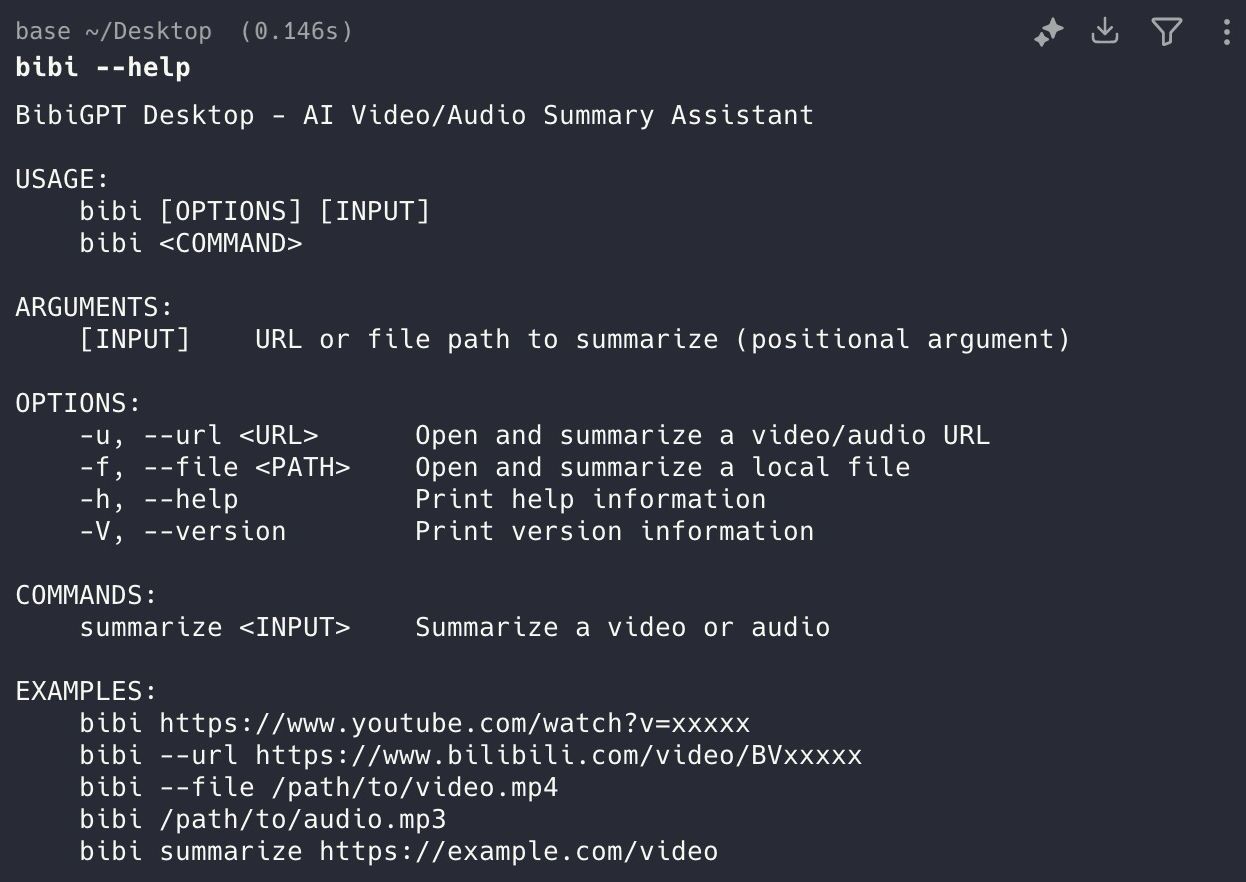
BibiGPT has launched a brand new Command Line Interface (CLI) support, further enhancing the experience for geeks and developers. Key update points are as follows:-
Global Command Support: After installing the desktop client, users can directly use the
bibicommand in the terminal. -
Multifunctional Parameters: By entering
bibi --help, users can view supported functions. Currently, it mainly supports two input sources: URL (web link) and File (local file). -
Seamless Wake-up: After entering
bibi [link]in the terminal, the system will automatically wake up the BibiGPT desktop application and immediately jump to the summary page for that video.
Solved Pain Points
As a developer or geek user accustomed to using the Terminal, every time I want to summarize a video or file, I need to switch windows, open the application, and manually paste the link. This operation of switching back and forth between the command line and the graphical interface interrupts my immersive workflow.Core Features
- BibiGPT launched a brand new Command Line Interface (CLI) support for geeks and developers.
- Global
bibicommand support after installing the desktop client. bibi --helpshows supported functions like URL and File input sources.- Automatically wakes up the desktop app and jumps to the video summary page from the terminal.
Feature Highlights
BibiGPT is now integrated with a Command Line Tool (CLI), supported after installing the client. Users only need to enter a simplebibi command (supporting URL or file path) in the terminal to directly call up the desktop client and automatically start summarizing, achieving seamless connection with the terminal workflow.
Applicable Scenarios
- As a developer or geek user accustomed to using the Terminal, every time I want to summarize a video or file, I need to switch windows, open the application, and manually paste the link. This operation of switching back and forth between the command line and the graphical interface interrupts my immersive workflow.
Usage Suggestions
- BibiGPT is now integrated with a Command Line Tool (CLI), supported after installing the client.
- Users only need to enter a simple
bibicommand (supporting URL or file path) in the terminal to directly call up the desktop client and automatically start summarizing, achieving seamless connection with the terminal workflow.