
Feature Overview
The BibiGPT client has released an experience optimization update, adding a system tray (menu bar for Mac) shortcut entry. Users can now quickly access core functions by clicking the BibiGPT icon in the system tray without opening the full application, including showing the main window, pasting URLs from the clipboard for summarization, uploading files, batch processing, speech-to-text, compressing video, and entering settings. This feature is designed to simplify user workflows, making calling common BibiGPT functions more convenient and faster, thereby enhancing the overall user experience. Here is an example of the function interface: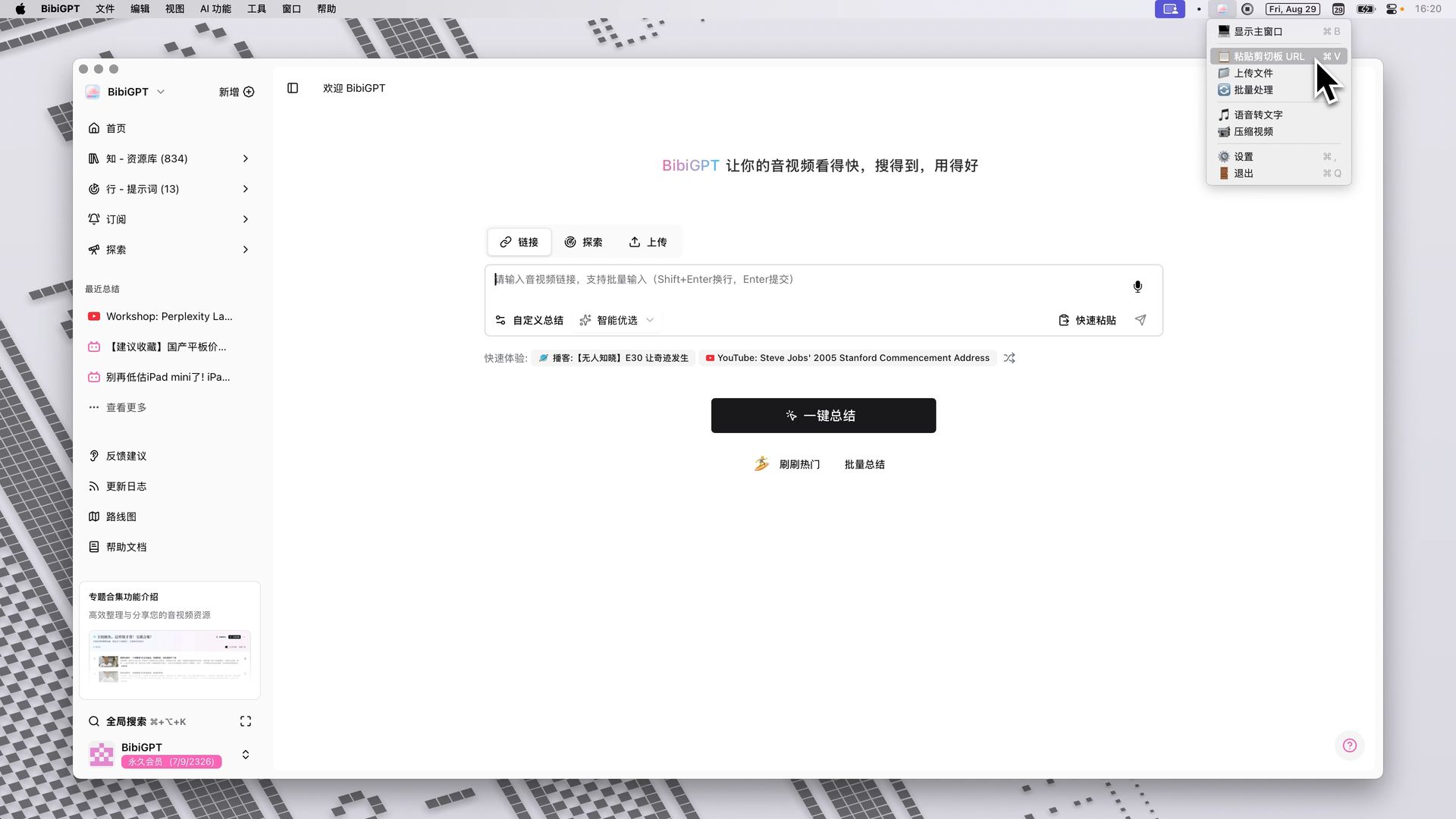
Solved Pain Points
I want to be able to quickly call a certain function of BibiGPT, such as pasting a just-copied video link for summarization, but every time I have to first find and open the full App window. This process somewhat interrupts my workflow and is not fast enough.Core Features
- BibiGPT client added a system tray (menu bar for Mac) shortcut entry.
- Access core functions like URL pasting, file uploading, and speech-to-text directly from the tray icon.
- Simplifies user operations by eliminating the need to open the main window for common tasks.
- App resides in the background for quick and convenient function calling.
Feature Highlights
The BibiGPT client has added a system tray (menu bar for Mac) shortcut entry, allowing the app to stay in the background. Users can quickly access core functions such as pasting links, uploading files, and speech-to-text by clicking the tray icon without opening the main window, greatly improving operational efficiency.Applicable Scenarios
- I want to be able to quickly call a certain function of BibiGPT, such as pasting a just-copied video link for summarization, but every time I have to first find and open the full App window. This process somewhat interrupts my workflow and is not fast enough.