
Overview
Open an existing summary, then go to Create / public article or Xiaohongshu. The panel starts with a generation source: current video, or custom text. Under that, Bring into draft can fill collection recap, collection Q&A, chapter blocks, the summary, or highlights into the custom text. You can still edit after filling.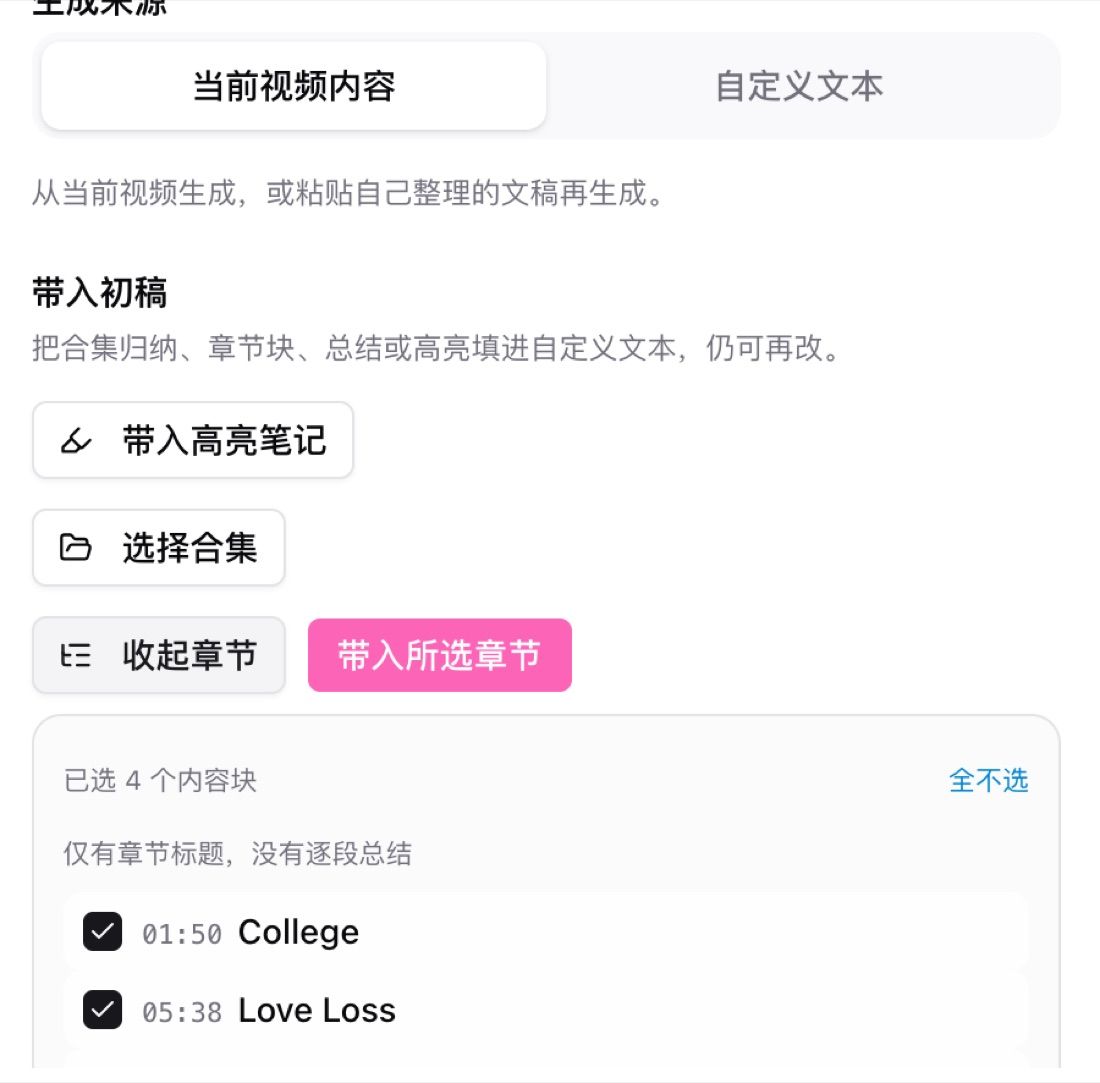
Pain Point
Drafts used to be stitched by hand from summaries, collections, chapters, and highlights. Entries were scattered, chapters were not multi-select, and audio-only items had no frames to pull.Key Features
- Generation source: current video, or switch to custom text before generating
- From a collection: drop the recap and Q&A into the draft instead of copying by hand
- Multi-select chapters: pick several blocks, clear all, then Bring selected chapters
- Bring highlights: fill marked highlights into the custom text
- Audio-only images: when there is no footage, images are generated from the content; public articles that need frames must be linked to the original video first
Highlights
Sources live in one place. Collection recap, Q&A, chapters, and highlights can land in the same draft.Use Cases
- A course collection already has a recap, and you want that plus Q&A as the article start
- A long video where only a few chapters belong in the prompt
- A podcast with no screenshots that still needs an illustrated post
Tips
- Open the default prompt on custom text before editing, so source and tone stay clear
- If the public article needs original frames, link the video first; do not rely on audio-only generation
- Collection import fits series you have already recapped; a single video can use current video content
Related Features
AI Video to Article
Collection Recap
Collection AI Chat
Related: AI video to article — try it now Upgrade to Pro: unlock article rewrite and collection import → Pricing