
Feature Overview
BibiGPT recently made an update to the “Article Reading” function aimed at optimizing the user reading experience. Responding to feedback from some users that interspersed screenshots might affect immersion when reading scripts generated from videos, BibiGPT has added a “Show Screenshot” toggle. Users can now freely choose to show or hide video screenshots in the article based on their preference, switching to a text-only mode with one click for a more focused and distraction-free reading experience. Here is an example of the function interface: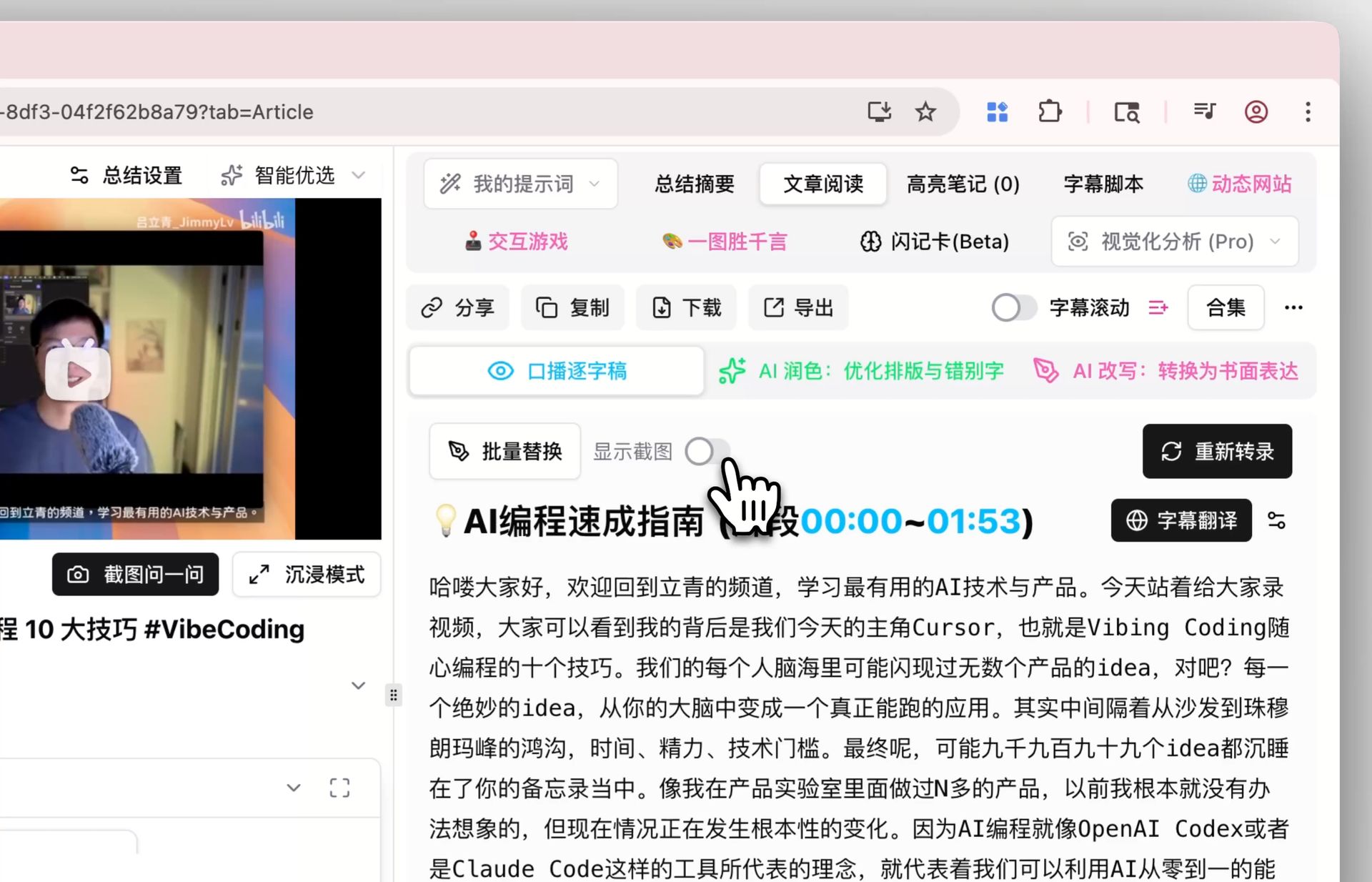
Solved Pain Points
When I want to immerse myself in reading long scripts generated from videos, video screenshots interspersed in the article sometimes interrupt my reading rhythm. I wish there was a text-only reading mode that allows me to focus more on the content itself.Core Features
- BibiGPT recently made an update to the “Article Reading” function aimed at optimizing the user reading experience.
- Addressed user feedback that interspersed screenshots might affect immersion when reading video-generated scripts.
- Added a new “Show Screenshot” toggle.
- Users can now freely choose to show or hide video screenshots in the article based on their preference, switching to text-only mode with one click for more focused, distraction-free reading.
Feature Highlights
BibiGPT has added a “Show Screenshot” toggle in the “Article Reading” function. Users can turn the display of video screenshots on or off with one click, freely switching between rich-media or text-only reading modes for a more focused and distraction-free experience.Applicable Scenarios
- When I want to immerse myself in reading long scripts generated from videos, video screenshots interspersed in the article sometimes interrupt my reading rhythm. I wish there was a text-only reading mode that allows me to focus more on the content itself.
Usage Suggestions
- BibiGPT has added a “Show Screenshot” toggle in the “Article Reading” function. Users can turn the display of video screenshots on or off with one click, freely switching between rich-media or text-only reading modes for a more focused and distraction-free experience.