
Overview
Open Visual summary on the right of a video page and switch to Screenshot analysis. It reuses PPT key frames and reads each still with the vision model you pick. Use it for charts, code screenshots, and slide decks.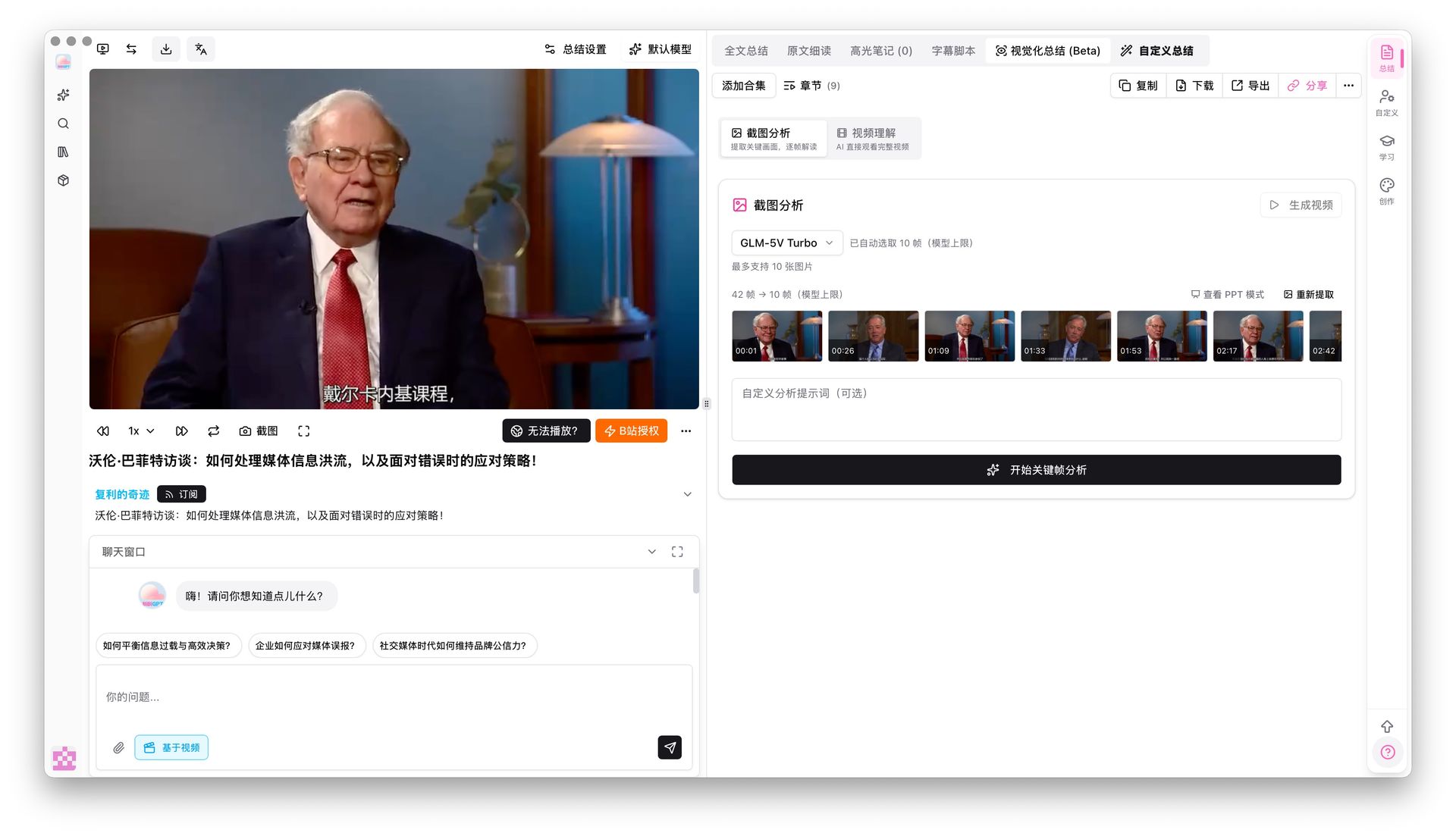
Pain Point
I want AI to see the picture, not only hear the audio. Charts and code in a tutorial never show up in a text-only summary.Key Features
- Reuses extracted PPT key frames—no extra manual screenshots
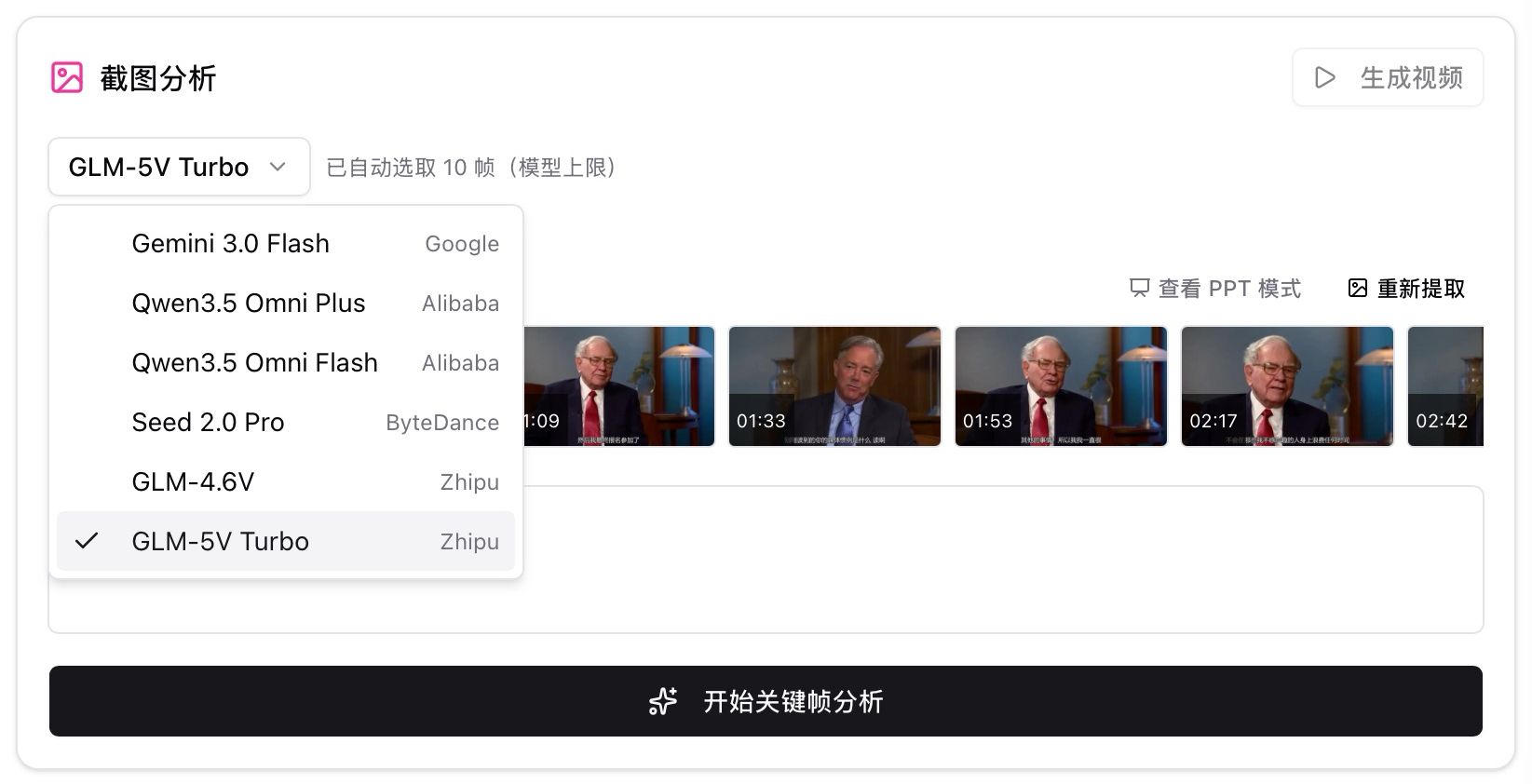
- Choose among vision models such as Gemini 3.0 Flash, Qwen3.5 Omni Plus / Flash, Seed 2.0 Pro, GLM-4.6V, and GLM-5V Turbo
- When stills exceed the model cap, frames are picked from shot changes and topic shifts in the captions—not evenly spaced. The UI says Auto-select by scene. With no captions, it uses visual change plus timeline coverage. Tap Start keyframe analysis
- Results offer PPT mode and Re-extract
- Complements Video understanding: details on stills vs. the whole clip
Highlights
Charts, board work, and code that never made the captions can be read frame by frame. Picks favor real scene and topic changes; long talking-head stretches keep fewer stills.Use Cases
- Coding or design tutorials where the step is on screen
- Talks packed with slides and data charts
- Explaining one still instead of summarizing the whole video
Tips
- Run PPT keyframe extraction first so Screenshot analysis has better stills
- Stay on a normal summary when captions are enough; turn this on when the picture matters
Related Features
PPT Keyframe Extraction
Visual Analysis for Online Videos
Smart Deep Summary
Related: Keyframe screenshot analysis — try it now Upgrade to Pro: more visual analysis runs → Pricing