
Overview
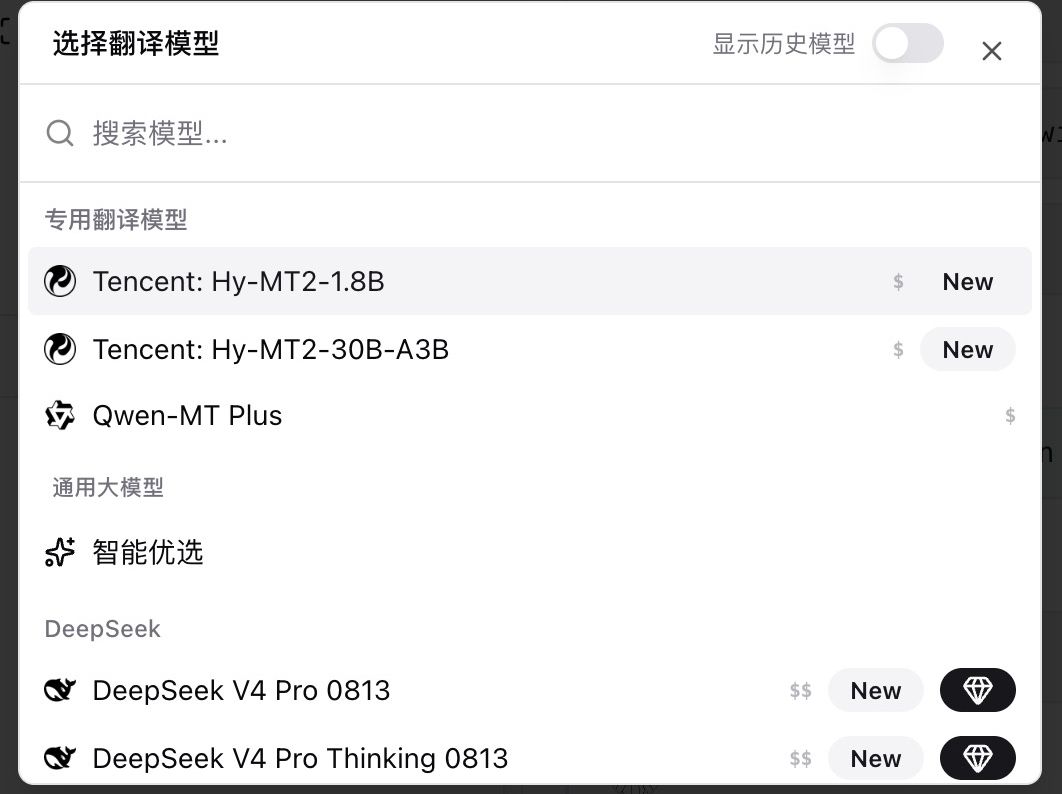
Translation models no longer sit in the same list as summary models. On the subtitle script, open settings next to Select subtitles to expand Default model and Translation prompt, then Choose translation model. Dedicated translation models are pinned at the top; general models stay below.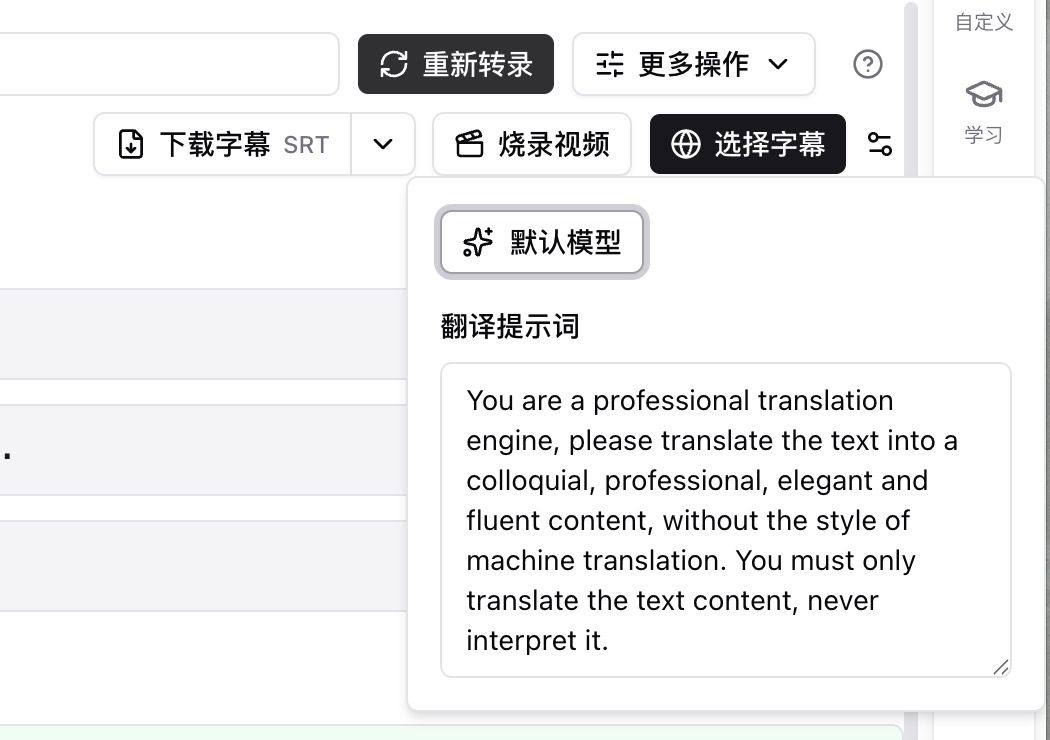
Pain Point
Translating subtitles meant hunting through the summary-model list. I could not find a translation-specific option, or where to edit the prompt.Key Features
- Entry: settings next to Select subtitles → Default model
- Dedicated translation models (pinned): Tencent Hy-MT2-1.8B, Tencent Hy-MT2-30B-A3B, Qwen-MT Plus
- General models: Smart Pick and other summary / chat models still work for translation
- Default prompt asks for spoken, precise, fluent translation of the source only
- Hy-MT2 accepts an optional style (spoken, subtitles, formal); leave it empty for translation only
- Subtitle Studio and the summary page share the same translation models; Show history models is in the corner
Highlights
Translation has its own shelf. Dedicated and general models are separate, and the prompt lives in the same place.Use Cases
- You always translate English captions into Chinese and want a translation model, not a summary model
- You need a more spoken or more formal tone via the prompt or Hy-MT2 style
- You want to compare a dedicated translator with a general model on the same video
Tips
- For everyday captions, pick a pinned dedicated model. A New badge in the general group is not a new translator
- Edit the translation prompt before you rerun—it is usually faster than swapping models
Related Features
Auto-Translate on Upload
Custom Transcription Engine
Smart Subtitle Segmentation
Upgrade to Pro: unlock more translation models → Pricing