
Overview
When you click New Summary and upload a local file, the dialog includes Local Privacy Mode. Turn it on to transcribe and summarize in the browser or desktop app. Nothing is sent to servers, and results are not stored in the cloud library. Use it for meeting recordings and personal notes that should never leave this device.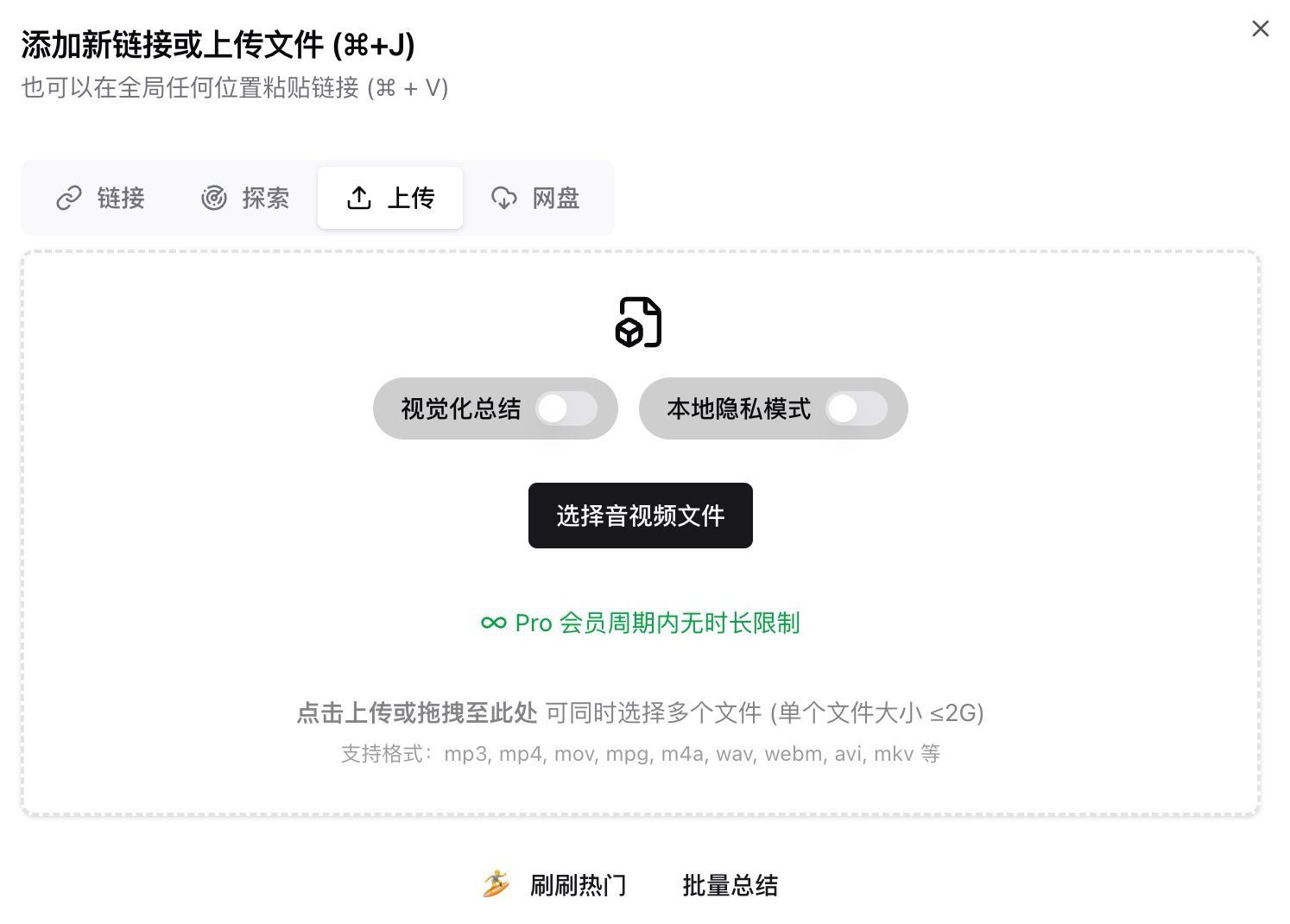
Pain Point
I have private recordings that need a transcript and summary, but the original file cannot go to any online service. Slightly lower quality is fine; the data cannot leave this computer.Key Features
- Upload dialog offers Visual Summary and Local Privacy Mode; local mode stays on-device
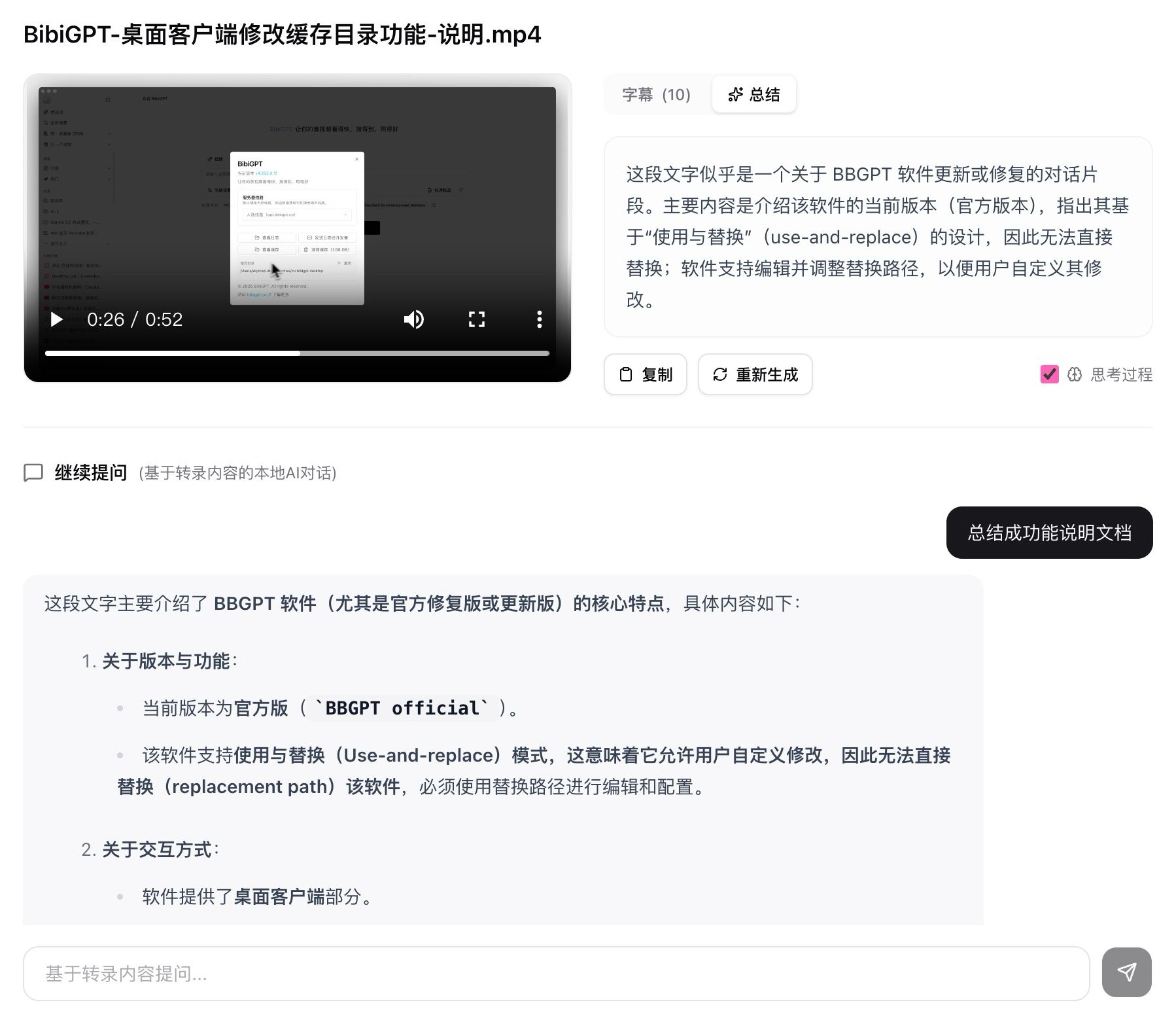
- Transcription and summary run in the browser or desktop app, with no sign-in and no cloud library write
- Results stay on this device and usually survive a refresh; you still get a player, subtitles, summary, and follow-up chat
- Summaries can show a thinking trace you can expand, or switch back to a plain summary
- Same toggle on the desktop app; Local Privacy Mode and Visual Summary cannot both be on
Highlights
Sensitive material can still become subtitles and a summary without an upload.Use Cases
- Internal meetings that must stay on company hardware
- Personal or family recordings you only want as text on your own computer
- A first local pass before you decide whether an online polish is appropriate
Tips
- On-device quality is usually below online processing. Use the online path for public-facing copy
- On desktop, turn Visual Summary off before Local Privacy Mode. The UI will say data is not uploaded or stored in the cloud
Related Features
Desktop Drag-and-Drop Upload
Folder Monitoring Auto-Import
Custom Transcription Engine
Upgrade to Pro: for higher-accuracy online summaries → Pricing