
Feature Overview
BibiGPT has updated the export panel functionality, officially integrating Cubox export options. Previously, Cubox configuration and usage were limited to the settings menu and were relatively hidden. After this update, Cubox has been integrated into the main “Export Content” panel. If users have completed Cubox configuration, they can now see the “Save to Cubox” option directly in the list after clicking “Export Content,” alongside options like saving to Notion. This improvement greatly simplifies the operational path for Cubox users to bookmark video summaries, solving the previous pain point of entry points being hard to find. Here is an example of the function interface: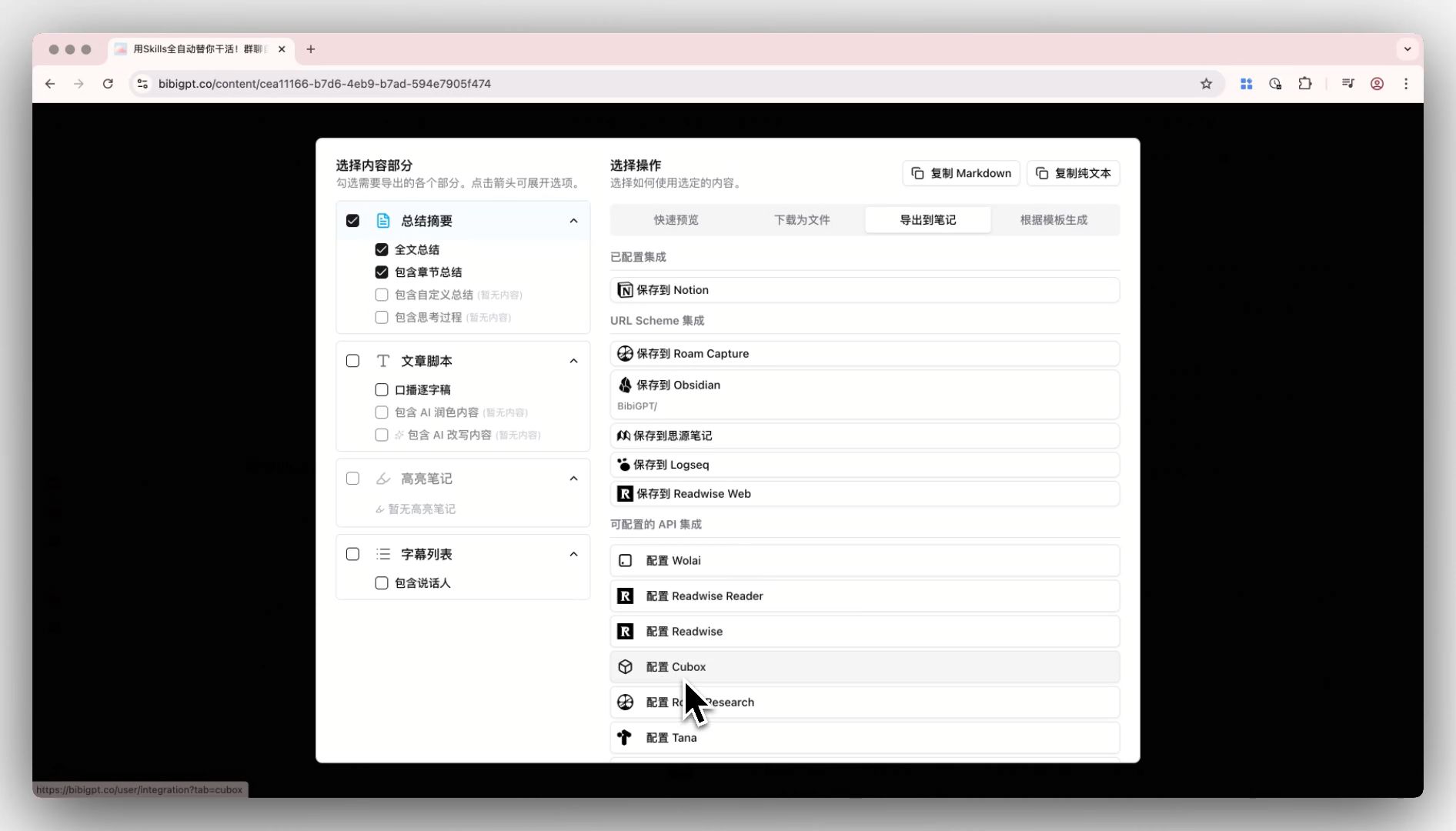
Solved Pain Points
“I often use Cubox to bookmark content for later reading, but I found that when I want to save notes summarized by BibiGPT to Cubox, I couldn’t find a direct entry point, or I needed to go through tedious configuration in settings. The process was not smooth enough.”Core Features
- BibiGPT integrated Cubox export options into the main export panel.
- Simplifies access compared to the previous hidden configuration in the settings menu.
- Users who configured Cubox see a “Save to Cubox” option alongside Notion and other tools.
- Streamlines the workflow for bookmarking video summaries to Cubox knowledge bases.
Feature Highlights
BibiGPT has now integrated Cubox into the general “Export Content” panel. As long as Cubox is configured, it will be displayed directly in the export list (alongside Notion), enabling one-click saving of AI summaries to your Cubox knowledge base.Applicable Scenarios
- I often use Cubox to bookmark content for later reading, and want to easily save BibiGPT summarized notes to Cubox.