
Feature Overview
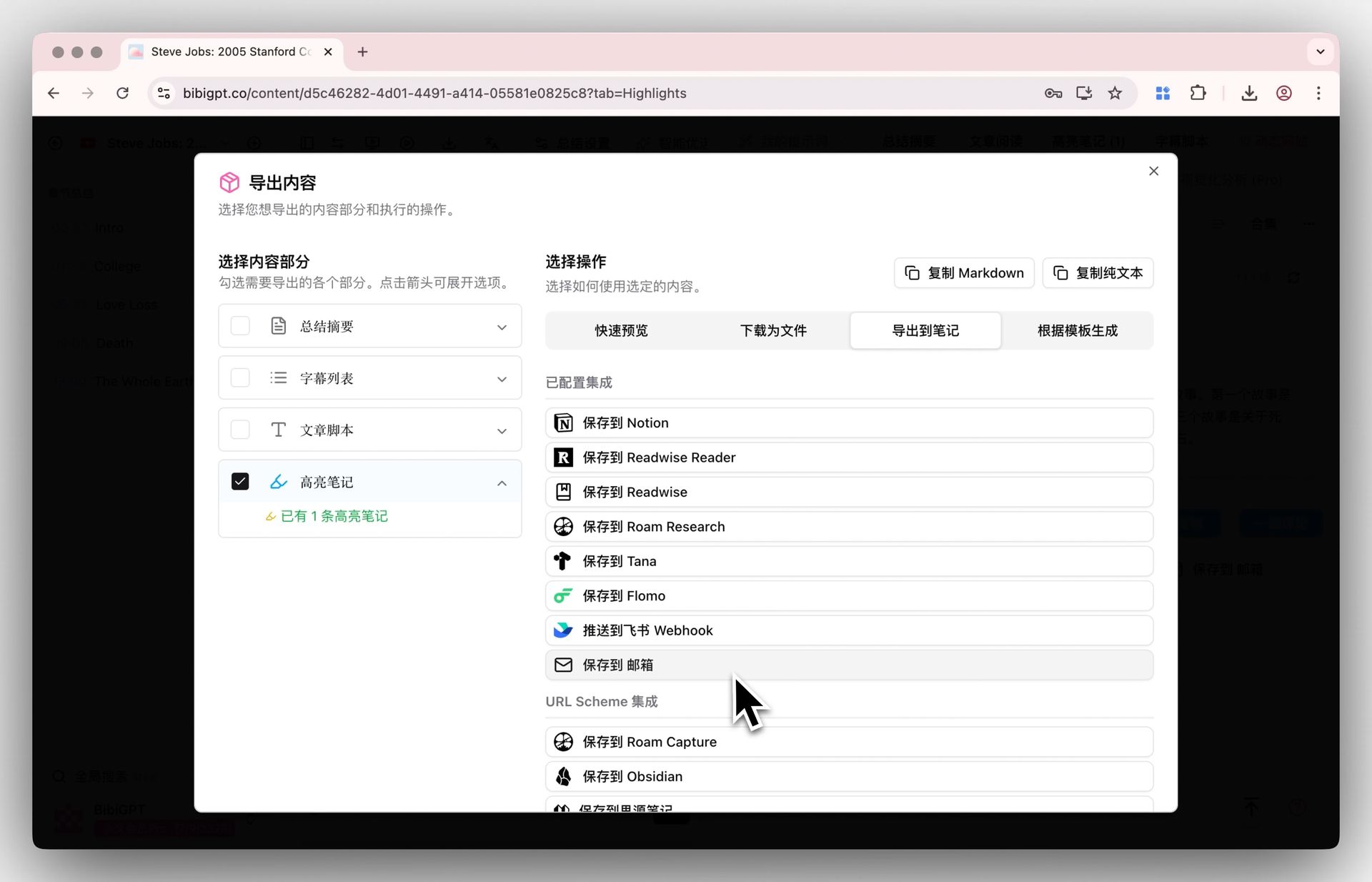
BibiGPT has added an export and download function for “Highlight Notes,” aimed at solving the pain point of users depositing key points marked during video learning into personal knowledge management tools. By clicking the “Export” button under the “Highlight Notes” tab, users can separately select “Highlight Notes” in the export options. This function supports one-click sending of highlighted content to mainstream note applications like Notion, Readwise, and Obsidian, and also supports downloading in file formats such as Markdown, Text, and PDF, achieving a seamless connection from video learning to knowledge organization and greatly improving learning efficiency. Here is an example of the function interface: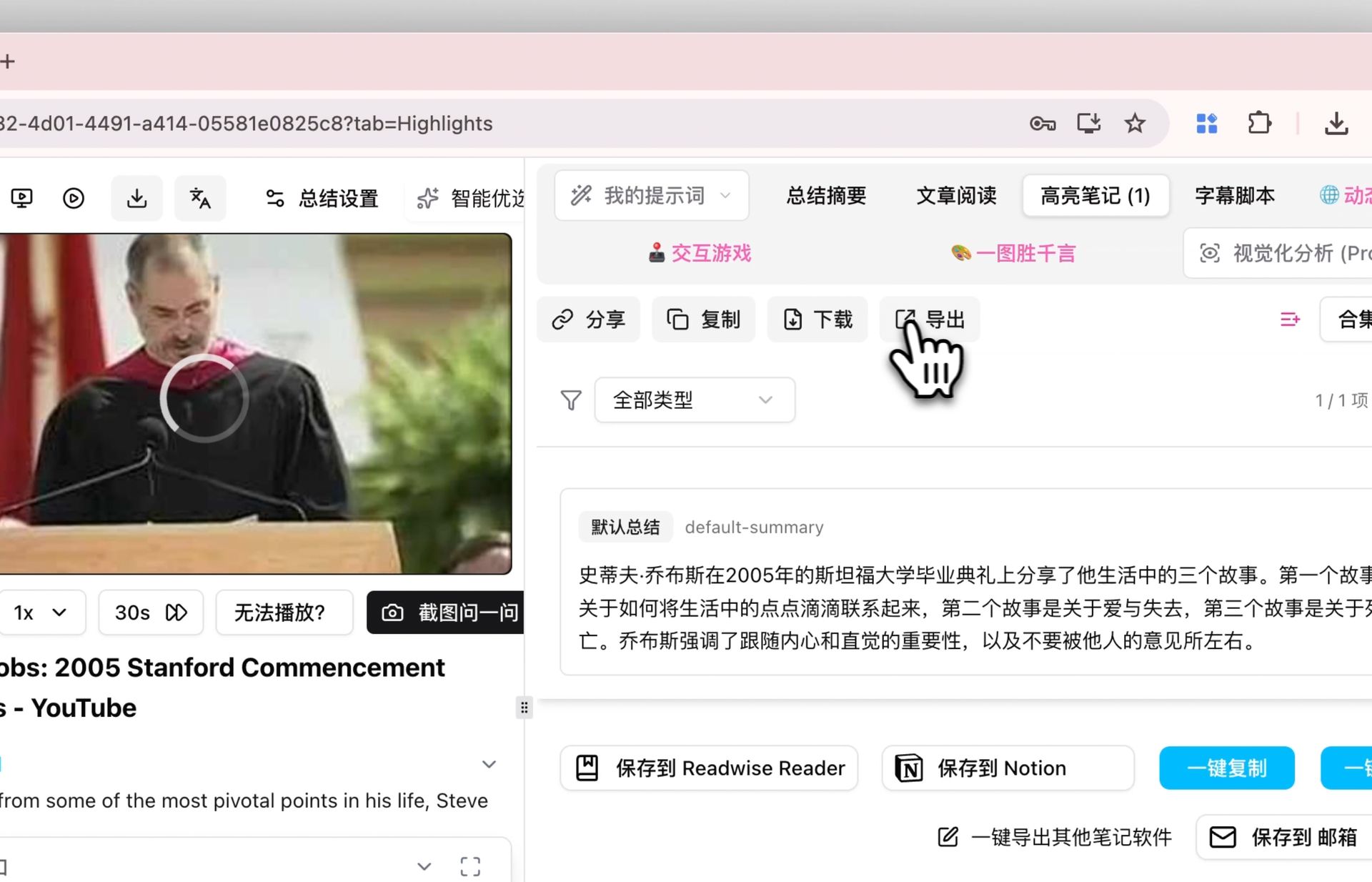
Solved Pain Points
When I use BibiGPT to study videos, I mark many key points (highlight notes), but it is very troublesome to organize these scattered notes into my Notion or Obsidian knowledge base. I hope to be able to sync them over with one click for easy secondary organization and study.Core Features
- BibiGPT added an export and download function for “Highlight Notes”.
- Users can click “Export” under the “Highlight Notes” tab and select “Highlight Notes” specifically.
- Supports one-click sending to Notion, Readwise, Obsidian, etc.
- Also supports downloading as Markdown, Text, and PDF file formats.
- Enables seamless transition from video learning to structured knowledge deposition.
Feature Highlights
BibiGPT added an independent export function for highlight notes. You can specifically select “Highlight Notes” when exporting and send them to Notion, Readwise, Obsidian, or download as Markdown, PDF, etc., with one click for seamless knowledge deposition.Applicable Scenarios
- When I use BibiGPT to study videos, I mark many key points (highlight notes), and want to sync them to my Notion or Obsidian knowledge base with one click for easy organization.