
Feature Overview
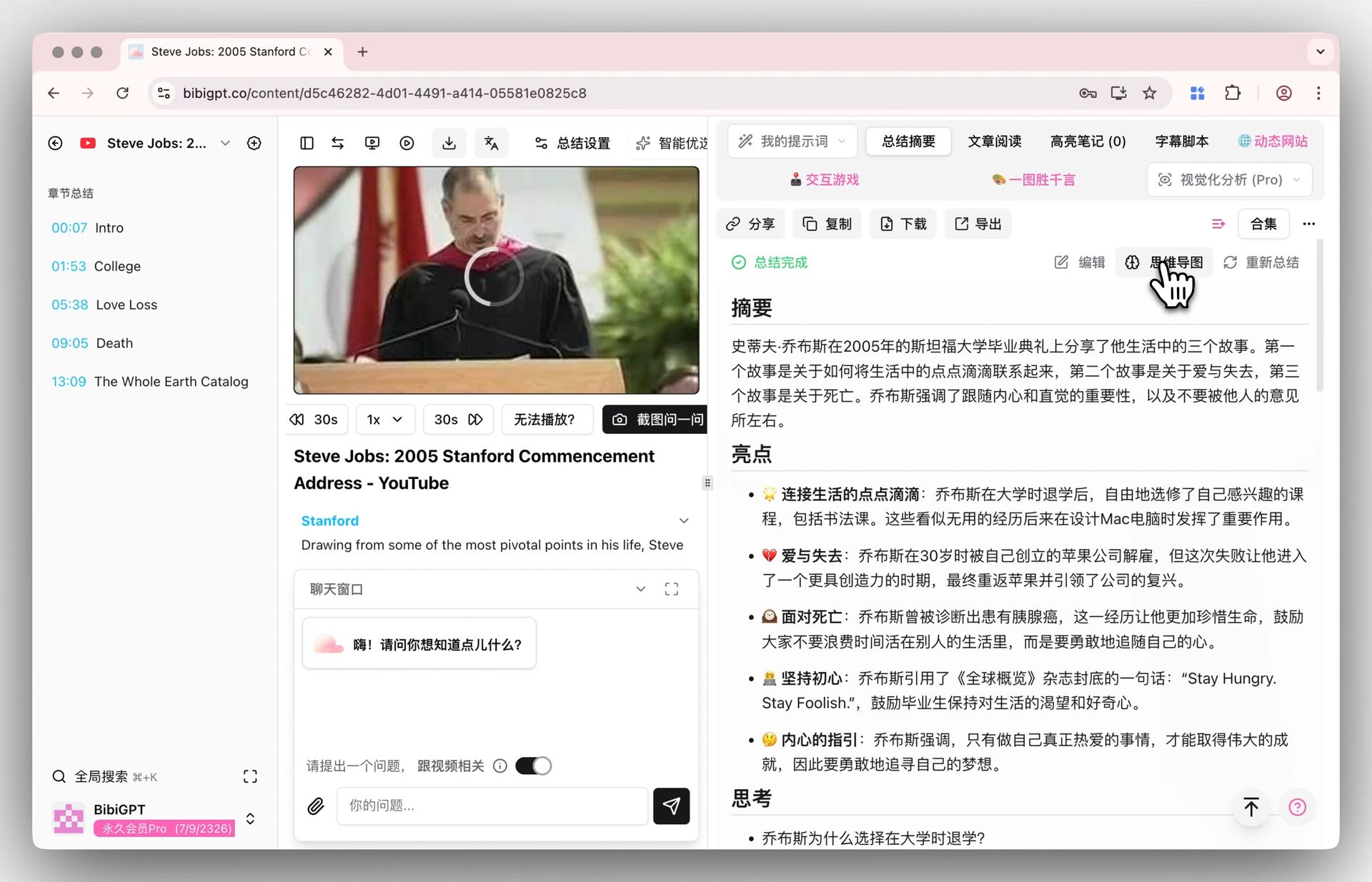
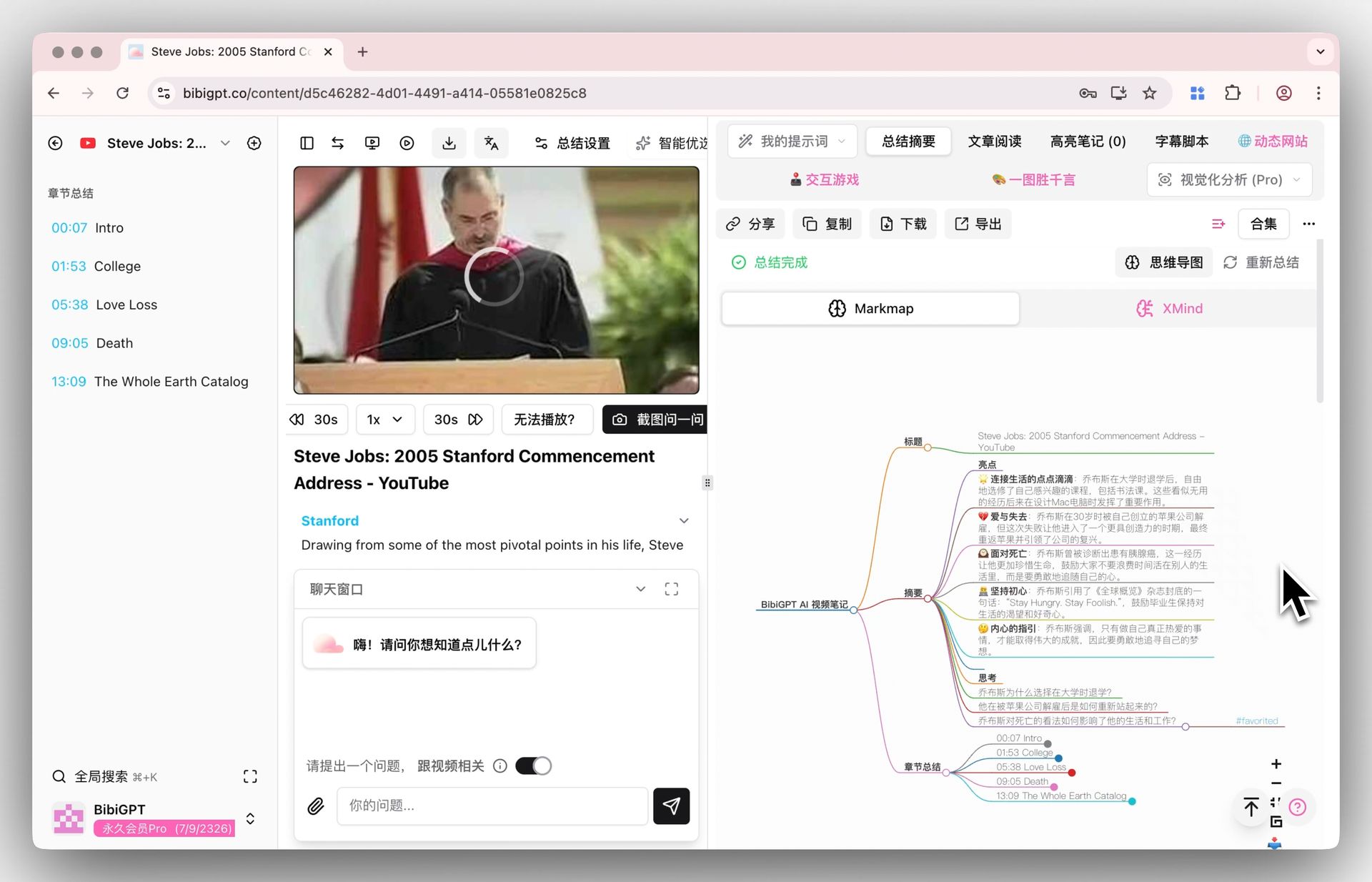
BibiGPT has optimized the user experience of the mind map function, integrating it from an independent tab into the “Summary Overview” view. This adjustment aims to position the mind map as an auxiliary overview tool for summary content, similar to a “game map”, for users to check occasionally. Users can now seamlessly switch to Markmap or XMind views by clicking the newly added “Mind Map” button while reading the text summary, making the process of summary browsing and structured overview more coherent and unified, and enhancing overall usage smoothness. Here is an example of the function interface: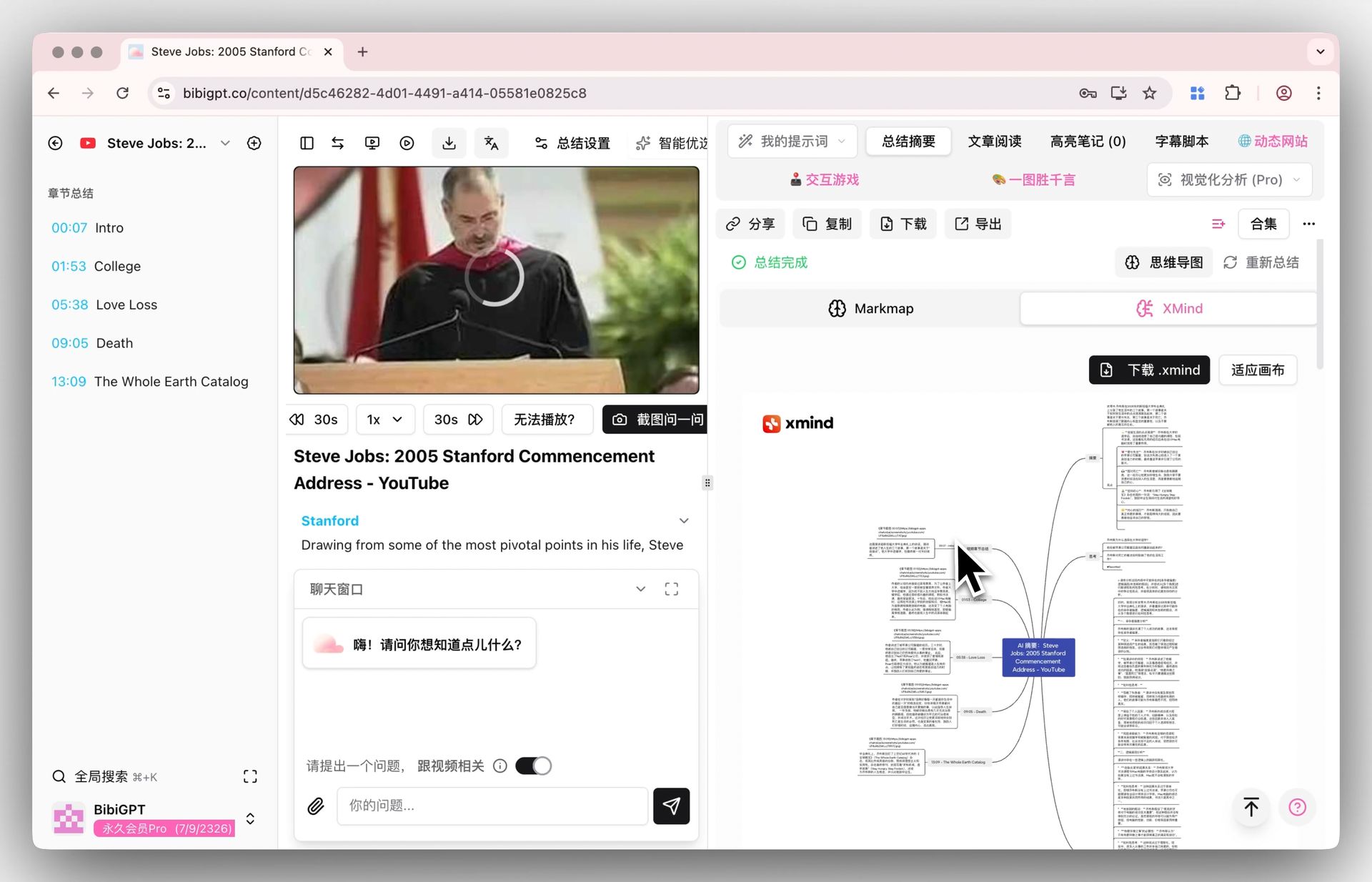
Solved Pain Points
I want to be able to quickly switch to the mind map view to get an overall overview while viewing the video summary, but previously they were separate, and I needed to switch back and forth between different tabs, which interrupted my reading workflow.Core Features
- BibiGPT optimized the mind map user experience by integrating it into the “Summary Overview” view.
- This serves as an auxiliary tool for text summaries, allowing for quick reference like a “game map”.
- Users can switch to Markmap or XMind views via a “Mind Map” button within the summary text.
- Coherent and unified workflow for summary browsing and structured overview.
Feature Highlights
BibiGPT integrated the mind map function into the “Summary Overview” view. Users now only need to click one button to seamlessly switch between text summaries and mind maps without leaving the current page, making the experience of information overview and detailed reading more smooth and unified.Applicable Scenarios
- I want to be able to quickly switch to the mind map view to get an overall overview while viewing the video summary, but previously they were separate, and I needed to switch back and forth between different tabs, which interrupted my reading workflow.