
Feature Overview
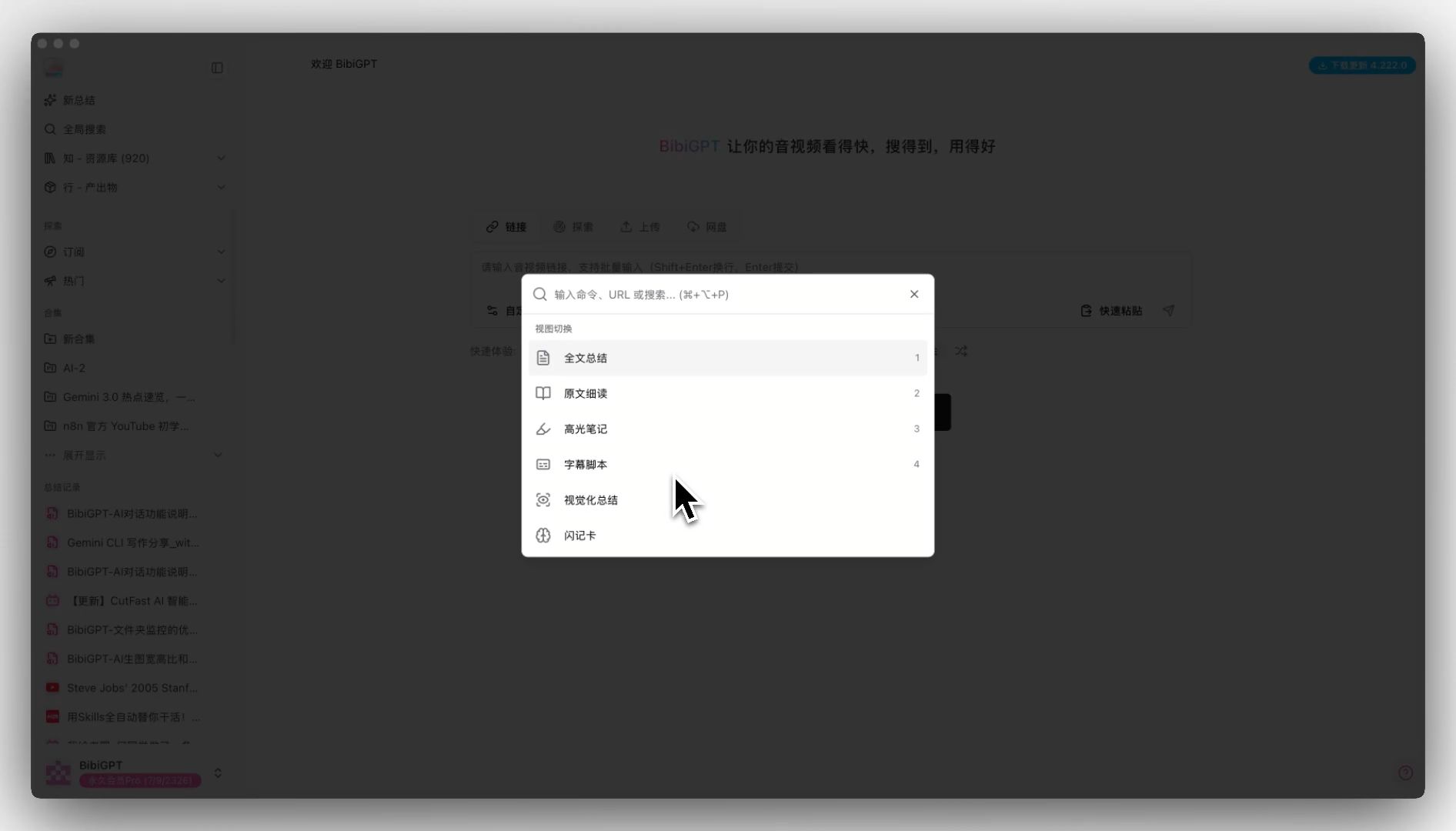
BibiGPT has recently launched the “Command Palette” function, aimed at providing an efficient shortcut entry for desktop and web users. Users only need to call up the palette through the shortcut keyCommand/Ctrl + P, and quickly jump to pages (such as settings page) or switch views in the video summary page (such as switching from full-text summary to highlight notes) by entering keywords. This function solves the tedious problem of menu searching after functions become rich, and supports automatic triggering of generation for content not yet generated.
Appendix: BibiGPT Command Palette full command list (organized by UI display order and grouping, 37 in total):
I. View Switching (Editor) - Only displayed on content pages
-
Full-text Summary (
1) -
Original Text Deep Reading (
2) -
Highlight Notes (
3) -
Transcript Script (
4) - Visualized Summary
- Flashcards
- Quick Notes
- Xiaohongshu Image
- Xiaoyuzhou Podcast
- Switch to Summary
- Switch to Creation
- Switch to Learning
- Switch to Custom
-
Search Video (
⌘K) -
Add Content (
⌘J) -
Paste Link (
⌘V) - Upload File (Desktop version only)
-
Flash Recording (
⌘⌥R, Desktop version only) -
Copy Content (
⌘C, Content page) -
Download Content (
⌘D, Content page) -
Export to App (
⌘E, Content page) -
Share Link (
⌘L, Content page) - Add to Collection (Content page)
- Home
-
Settings (
⌘,) - Profile
- Explore Popular
- Batch Processing
- Buy Membership
- Market
- Light Theme
- Dark Theme
- Follow System Theme
- Switch to Chinese
- Switch to English
- Domestic Line
- Overseas Line
Solved Pain Points
“When using BibiGPT, as more and more functions (such as full-text summary, mind map, settings, etc.) are added, I often need to click and jump between different menus and pages. The operation path is long, interrupting the immersive reading and creation experience.”Core Features
- BibiGPT has recently launched the “Command Palette” function, aimed at providing an efficient shortcut entry for desktop and web users.
- Users only need to call up the palette through the shortcut key
Command/Ctrl + P, and quickly jump to pages (such as settings page) or switch views in the video summary page (such as switching from full-text summary to highlight notes) by entering keywords. - This function solves the tedious problem of menu searching after functions become rich, and supports automatic triggering of generation for content not yet generated.
- Appendix: BibiGPT Command Palette full command list (organized by UI display order and grouping, 37 in total):
Feature Highlights
BibiGPT has launched a brand new “Command Palette” function. Users only need to pressCommand + P (Mac) or Ctrl + P (Windows) to call up the global search box. By entering commands or keywords, you can switch views (such as highlight notes, transcript scripts), jump to settings, or perform specific actions in milliseconds without leaving the keyboard, greatly improving the usage efficiency of desktop and web versions.
Applicable Scenarios
- When using BibiGPT, as more and more functions (such as full-text summary, mind map, settings, etc.) are added, I often need to click and jump between different menus and pages. The operation path is long, interrupting the immersive reading and creation experience.
Usage Suggestions
- BibiGPT has launched a brand new “Command Palette” function. Users only need to press
Command + P(Mac) orCtrl + P(Windows) to call up the global search box.