
Feature Overview
BibiGPT has updated the AI chat window function to solve the pain point reported by users that the dialogue window is too small and cannot be fullscreen. Now, users can make the chat window fullscreen with one click on the video detail page to obtain an immersive dialogue experience. At the same time, the window also supports free dragging of position and resizing, making the interaction between users and AI more flexible and convenient, greatly improving the efficiency and experience of in-depth Q&A. Here is an example of the function interface: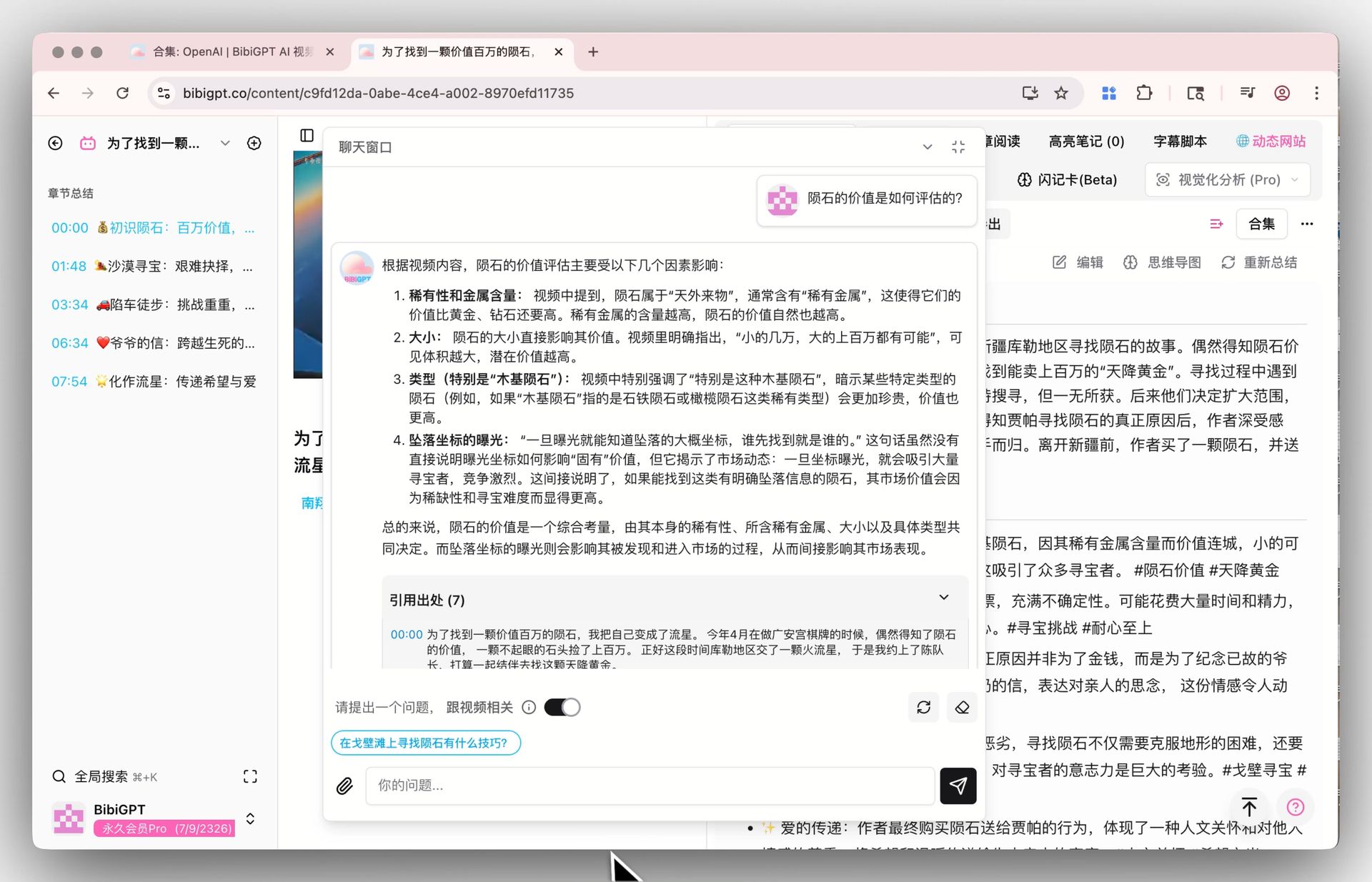
Solved Pain Points
When having in-depth conversations with BibiGPT AI, the original chat window was too small and fixed in position, and long Q&A content could not be displayed completely, limiting the experience. Users hoped for a more immersive and free dialogue interface.Core Features
- BibiGPT has updated the AI chat window function to solve the pain point reported by users that the dialogue window is too small and cannot be fullscreen.
- Now, users can make the chat window fullscreen with one click on the video detail page to obtain an immersive dialogue experience.
- At the same time, the window also supports free dragging of position and resizing, making the interaction between users and AI more flexible and convenient, greatly improving the efficiency and experience of in-depth Q&A.
- BibiGPT now supports fullscreen, moving, and free resizing of the AI chat window.
Feature Highlights
BibiGPT now supports fullscreen, moving, and free resizing of the AI chat window. You can maximize the dialogue window for an immersive experience, or drag and zoom it at will as needed, so that AI dialogue is no longer limited to a fixed layout.Applicable Scenarios
- When having in-depth conversations with BibiGPT AI, the original chat window was too small and fixed in position, and long Q&A content could not be displayed completely, limiting the experience. Users hoped for a more immersive and free dialogue interface.
Usage Suggestions
- You can maximize the dialogue window for an immersive experience, or drag and zoom it at will as needed, so that AI dialogue is no longer limited to a fixed layout.